
Locums, pre-set and locked assignments
A locum is a temporary physician brought in to cover known dates, such as while a partner is on leave. More generally, some assignments are settled before the schedule is built, and generation has to work around them. In Orchestrate Health you add the locum as a physician, place their days by hand, lock them, and then generate; locked assignments stay put.
- Put a locum on the call schedule for known dates.
- Fix assignments that were agreed before generating.
- Regenerate without losing pre-set days.
How to do it
- 1
Add the locum as a physician
There is no separate locum type. Select “+” in the Physicians box, type their name, and press Enter. The day editor and the Holidays grid only offer physicians on the roster.
- 2
Keep generation from choosing them
Select their name to open Physician Settings. Under “Roles”, choose “Some roles”, untick every role, and select Save. Generation then leaves them out, but you can still pick them by hand.
- 3
Place and lock their days
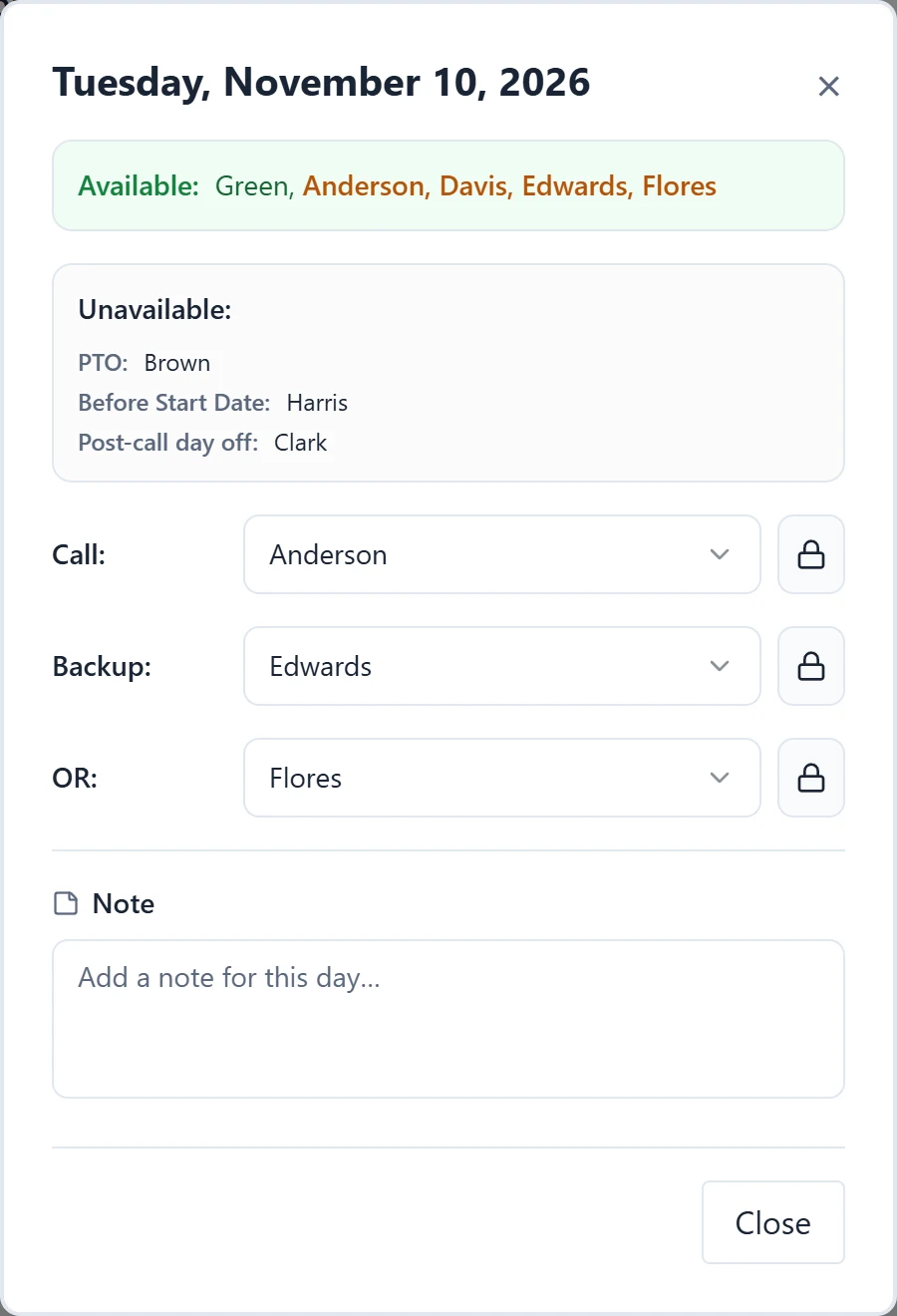
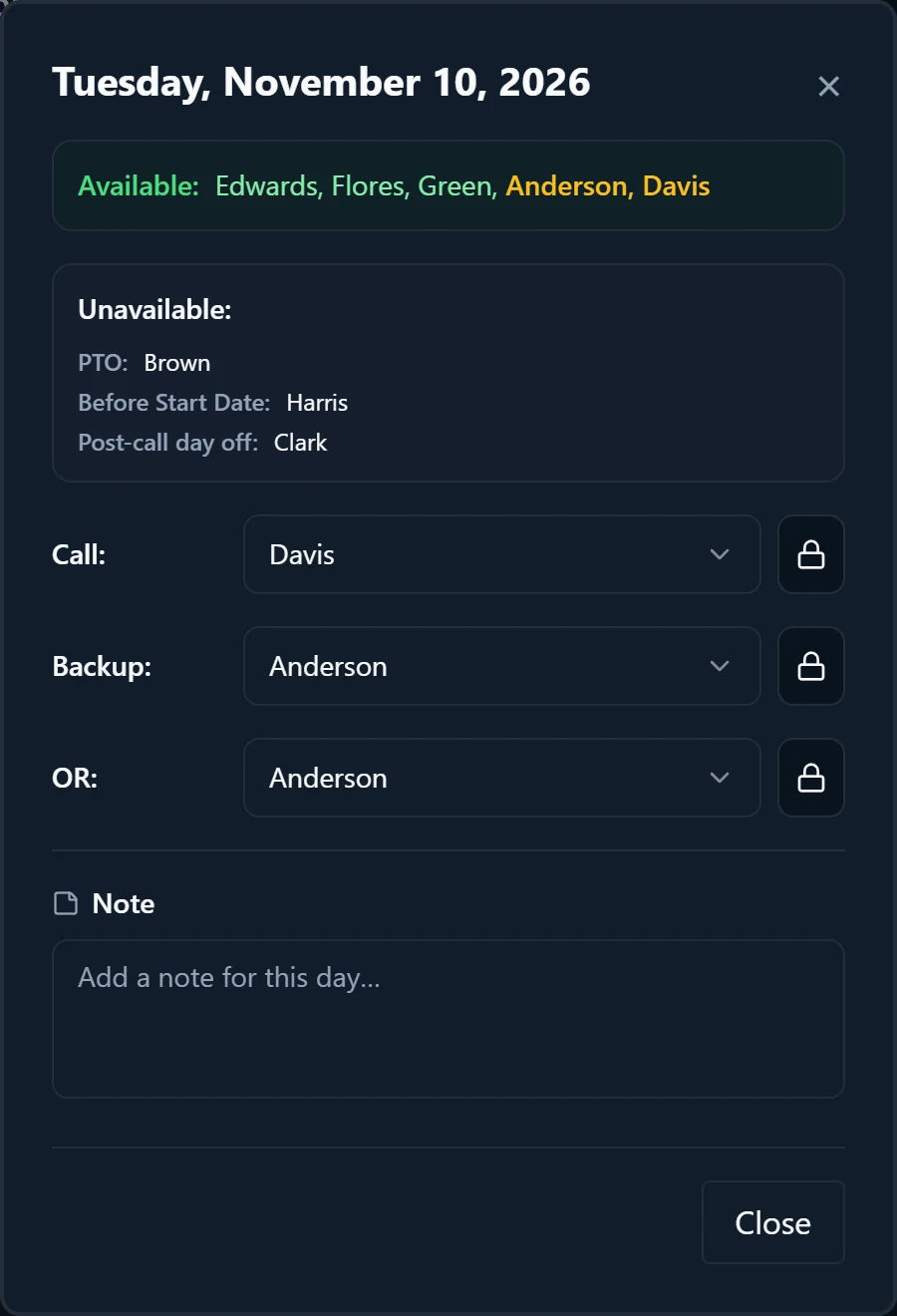
Open each day they cover, choose them from the role’s dropdown, and select the lock button beside it. Locked names show in yellow.
- 4
Lock several at once
In “Specific Locks” under Refinements, select Lock on the locum’s row under “Physician” to lock all their assignments in the schedule range. The “Role” and “Time” sections lock by role or by date.
- 5
Pin holiday coverage
In Holidays, select the pencil on a holiday and choose the locum’s name for a role. As the grid says, a name is set and locked on the calendar.
- 6
Generate around them
“Generate” replaces every unlocked assignment in the range you choose and keeps locked ones. “Quick regenerate” in “Bulk Edits” keeps every existing assignment and fills only the empty slots.
Examples
Dr. Kim is on PTO Monday 4/6 through Friday 4/10, and Dr. Ortiz covers Kim’s Call as a locum. Add Ortiz, untick every role under “Roles”, assign Ortiz to Call on 4/6 through 4/10, then select Lock on Ortiz’s row in “Specific Locks”. Generate April: Ortiz keeps those five days and everyone else fills the rest of the month. In Shift Count, Ortiz shows 5 under Assigned and “-” under Target.
Ortiz also takes Call on Thanksgiving, 11/26. In Holidays, select the pencil on Thanksgiving, choose Ortiz for Call on 11/26, leave the other roles on Auto, and select the check. Ortiz appears on 11/26, locked, and generation fills the other roles that day.
Good to know
- A locum on the roster is counted in Shift Count like anyone else, and uses one of the practice’s 15 physician places. If they can work a role, they get a Target in it, which is part of that role’s shifts and lowers everyone else’s Target.
- With the locum left out of a role, their Target and Diff show “-”. The Target of each regular physician is still a share of all the role’s shifts in the range, the locum’s days included, so their Diff reads a little low. Compare the regular physicians with one another.
- For a locum who works a regular pattern and should be scheduled by generation, leave them in the role and limit them instead: “Availability” set to “Some days” keeps them to certain weekdays, and a “Reduced” “Shift load” gives them fewer shifts relative to everyone else.
- A locked assignment on a day outside the physician’s “Availability” is not flagged as a conflict.
- Roles the locum is left out of show “Selected doctors” in Coverage & Roles. When you later add a permanent physician, tick them there.
- While any cell is locked, the toolbar button reads “Unlock All” and removes every lock, the locum’s included. “Clear Assignments” keeps locked cells, but “Clear assignments after date” and “Reset schedule” in “Bulk Edits” remove locks too.
- “Remove from roster” deletes the locum’s settings but leaves their existing assignments on the calendar.
See the product tourRead the FAQ