
Edit assignments and check for conflicts
The day editor lets you change who covers each role on a single date. It shows who is available that day and warns you when a change breaks one of your rules, so exceptions are made on purpose rather than by accident.
- Make a one-off change a physician asked for.
- Fill a shift generation left empty.
- Find out why a physician cannot take a day.
How to do it
- 1
Open a day
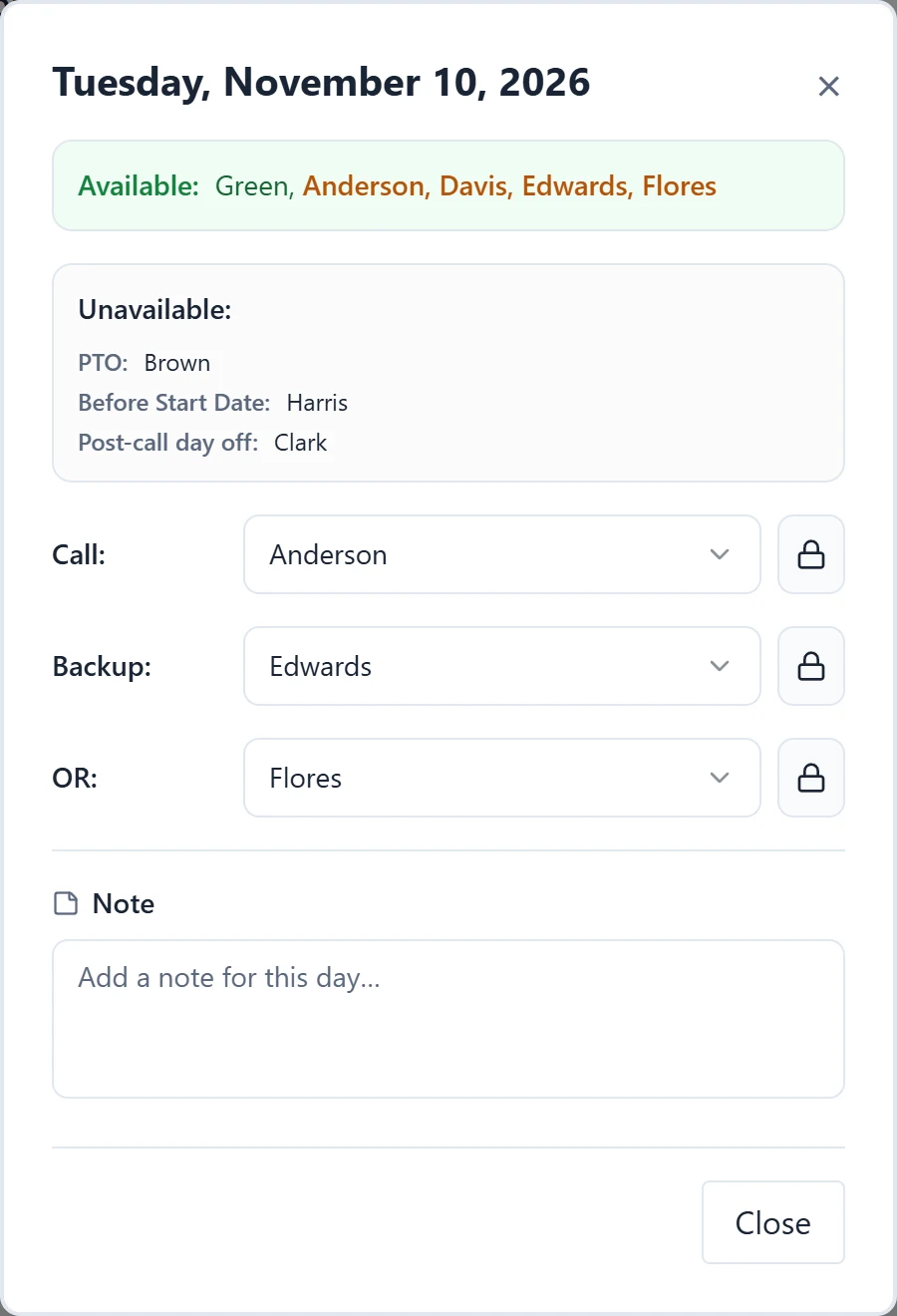
In calendar view, select the day. In table view, select any role cell in that day’s column; the date header itself does not open the editor. The editor’s title is the full date.
- 2
Check who is available
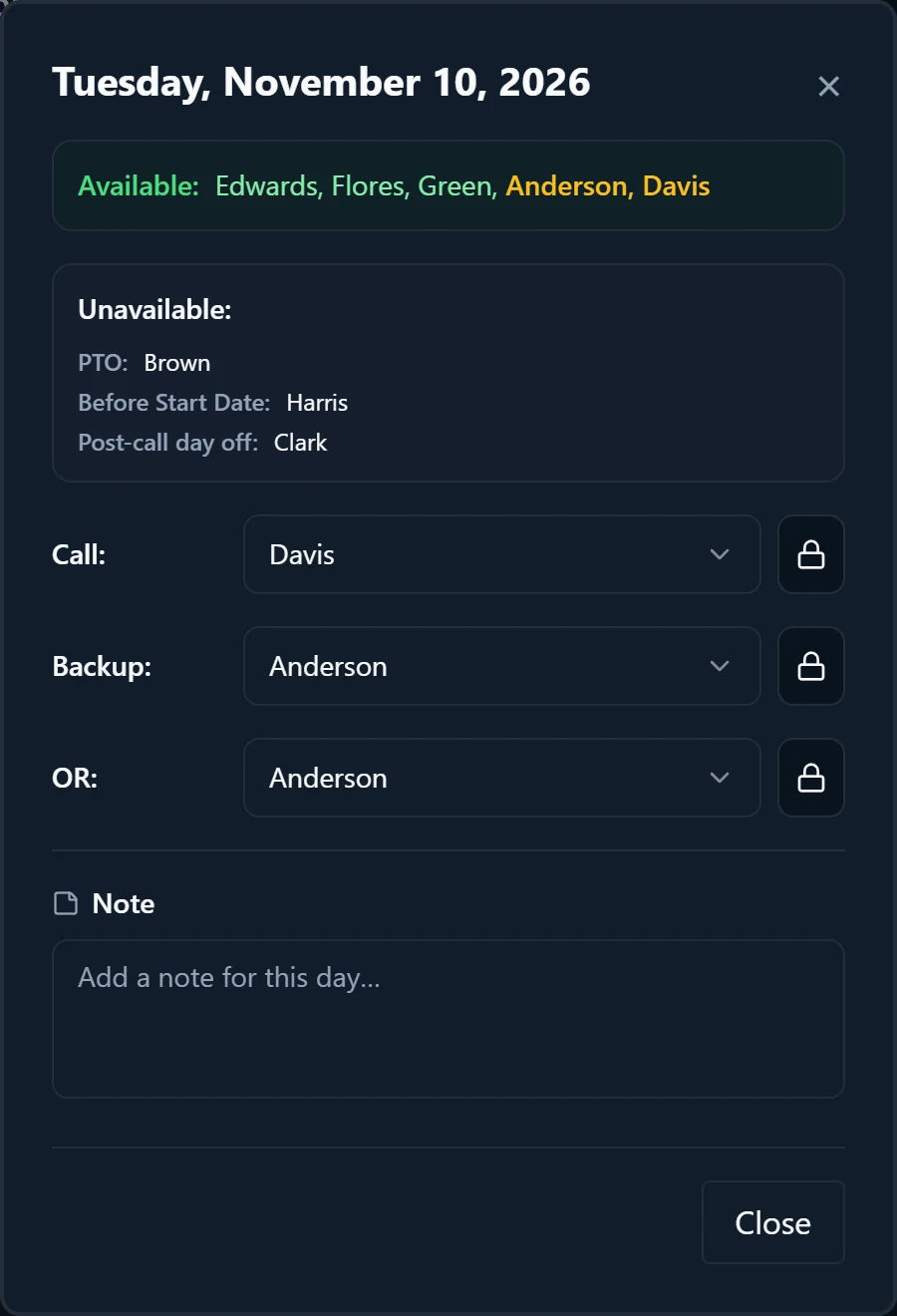
“Available:” lists physicians free that day. Names in amber are only partially available; hover one to see which roles they cannot take. “Unavailable:” groups everyone else by reason, such as PTO, CME, Leave of Absence, Post-call day off, or Not in role pool.
- 3
Change the assignment
Pick a physician from the role’s dropdown, or choose “--” to leave it empty. The change applies right away; the editor only has a Close button.
- 4
Read the issues
“Assignment conflicts” lists rules the day’s assignments break, by role. “Weekly pattern notes” lists softer warnings worth checking. Both update as you change assignments.
- 5
Lock what should stay
Select the lock button beside a role so generation keeps that assignment. A locked role’s dropdown is disabled until you unlock it.
- 6
Add a note
Type in “Note” to explain an exception to other schedulers. In calendar view, a note icon appears on the day; hover it to read the note.
- 7
Scan the calendar for problems
A red triangle beside a name marks a conflict and an amber one marks a note; hover it for the message. Days with a conflict get a red outline in calendar view, and in table view the cell itself is outlined in red or amber.
Good to know
- Hover a day in calendar view, or anywhere in a day’s column in table view, to see an “Unavailable:” card with each physician’s reason, without opening the editor.
- Locked assignments show in yellow on the calendar and in the table.
- Picking a physician for some roles, such as the starter OR role, locks that cell automatically. Check the lock button if you want it to stay unlocked.
- On a saved schedule, “Activity” at the bottom of the editor shows the count of events for that day. Expand it to see publishes, swaps, PTO decisions, notes, and absence edits that touched the date.
- The editor lets you assign anyone, even someone marked unavailable. The conflict list is how you catch that, so read it before closing.