
Publish changes and share a schedule
Saving keeps your work. Publishing records what you told the group: the first publish sets a baseline, and each later publish logs the assignment changes since the one before. Sharing gives your team a view-only link that needs no account, and lets you add other schedulers as collaborators who can edit.
- Get a record of which assignments changed after the schedule went out.
- Send the schedule to physicians without giving them an account.
- Let a co-scheduler edit the same schedule.
- Save the schedule under a name. Publishing, share links, and collaborators all need a named schedule.
How to do it
- 1
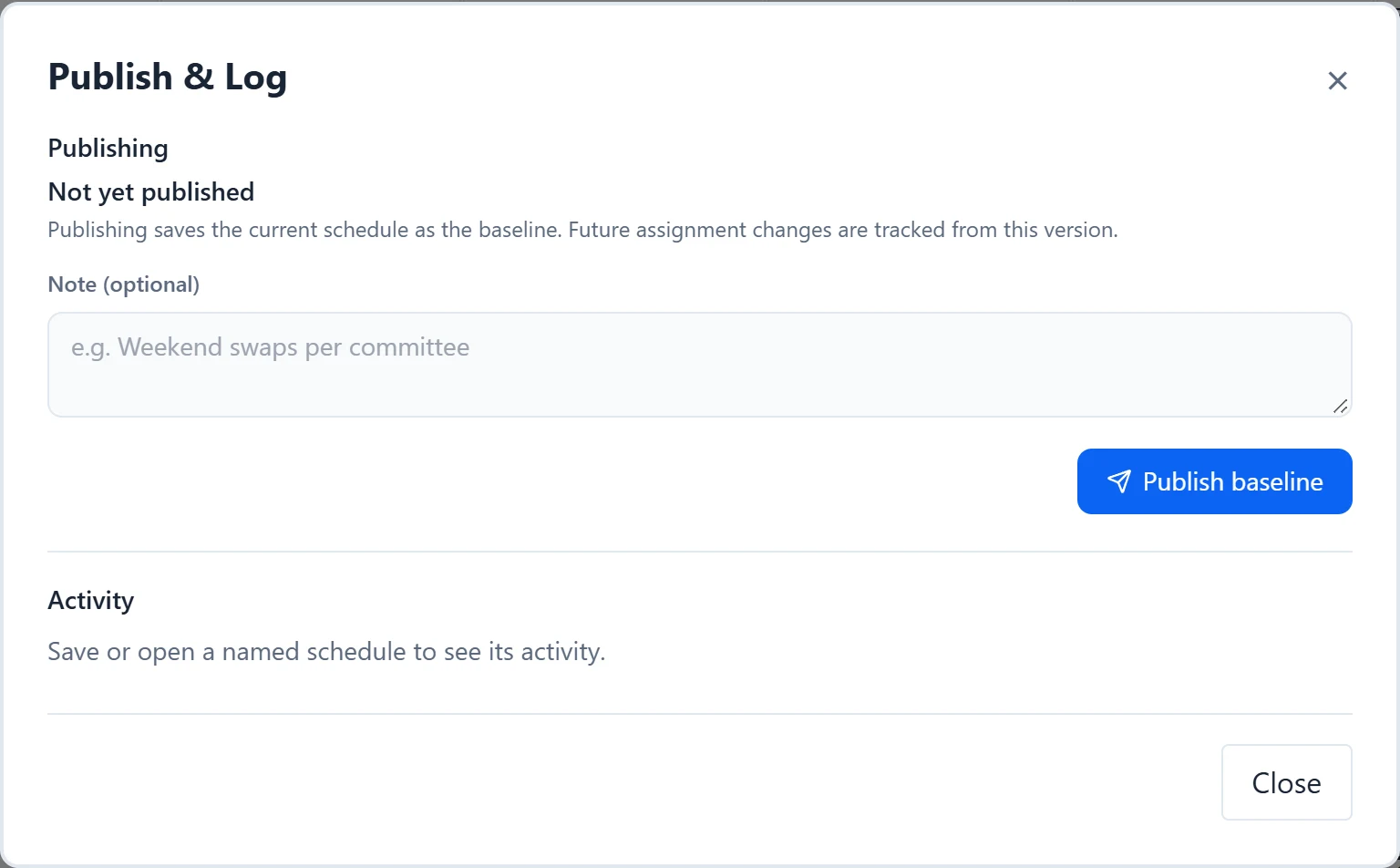
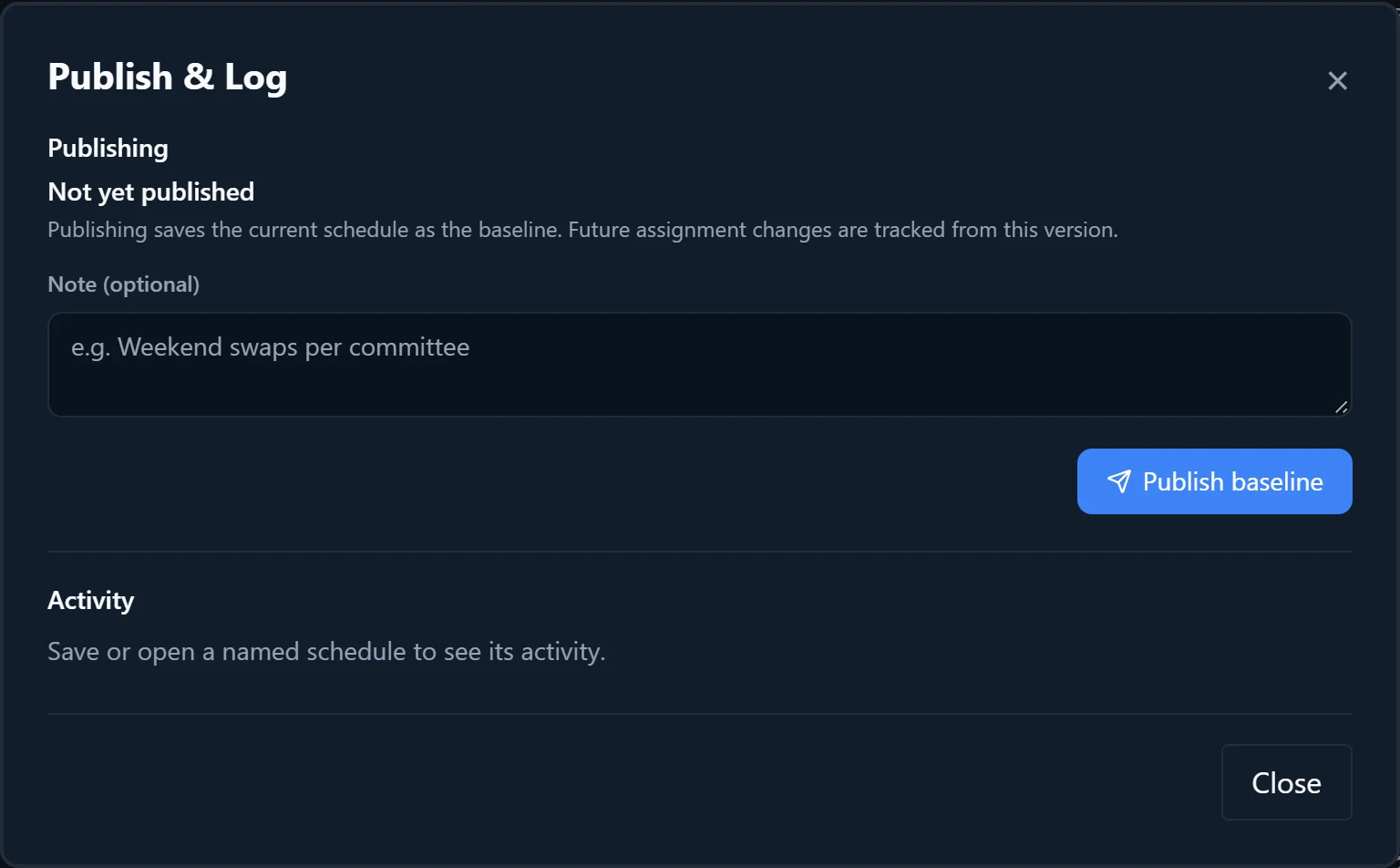
Open Publish & Log
Choose “Publish & Log” in the sidebar. Its badge counts unpublished changes. The status line reads “Not yet published”, the number of unpublished changes, or “No unpublished changes”.
- 2
Publish the baseline
Add an optional note and select “Publish baseline”. This records the current assignments as the starting point, and later changes are tracked from it.
- 3
Review what changed
Once a baseline exists, each changed assignment is listed as role · date: previous physician → new physician, with “(none)” for an empty slot. The list shows the first 50, then how many more. It compares against what is on screen now, including edits you have not saved.
- 4
Publish the changes
Add an optional note and select “Publish changes”. The changes move into the log. With no changes and no note, you are asked to add a note or change assignments first.
- 5
Search the activity log
The Activity section lists publishes, swaps, absences, and day notes with Action, When, By, and Details. Use the “Publishes”, “Swaps”, “Absences”, and “Notes” chips, the search box, the “All physicians” picker, and the “When:” dates, which filter by when the event happened. A speech-bubble icon opens an entry’s note.
- 6
Create a share link
Choose Share in the sidebar to open “Share schedule”, which lists your saved schedules with the open one first. Select “Create link” on a row. For the open schedule, this saves all current edits first. Then use “Copy link” or “Open”.
- 7
Add a collaborator
In the Collaborators column, select + (“Add collaborator”), enter their email, and select “Add”. They need an existing account. The schedule then appears under Shared in their Load menu. Select the × beside an email to remove them.
- 8
Set up calendar feeds
Select “Sync” in the Calendar column to open Calendar Sync for that schedule. It stays unavailable until the schedule has a share link.
Good to know
- Publishing does not save the schedule. The share link shows your last save, so press Save after editing so physicians see the change.
- The … menu beside a link offers “Regenerate link”, which issues a new link and turns off every existing link for that schedule, and “Remove link”, which ends access. Both ask first. Calendars subscribed to the old link may keep showing stale assignments without warning, so send subscribers the new link.
- “Reset baseline” appears at the top of Publish & Log once you have published. It permanently deletes the baseline and every publish record for the schedule and cannot be undone.
- Collaborators also receive the emails sent when physicians submit PTO or swap requests.
- The On Call page settings sit at the bottom of “Share schedule”.