
Review shift swap requests
Physicians can propose shift swaps from the shared schedule link. Each request comes to you in Shift Swaps, where you see every move it makes and any conflicts it would create, and apply or reject it. The schedule does not change until you apply it.
- Approve a trade two physicians have agreed on.
- Turn down a swap that no longer fits the schedule.
- Arrange a swap yourself for a physician who asked by phone or email.
- A saved schedule with a share link, so physicians can submit requests.
- Physician email addresses on file, if they should hear the outcome.
How to do it
- 1
Open Shift Swaps
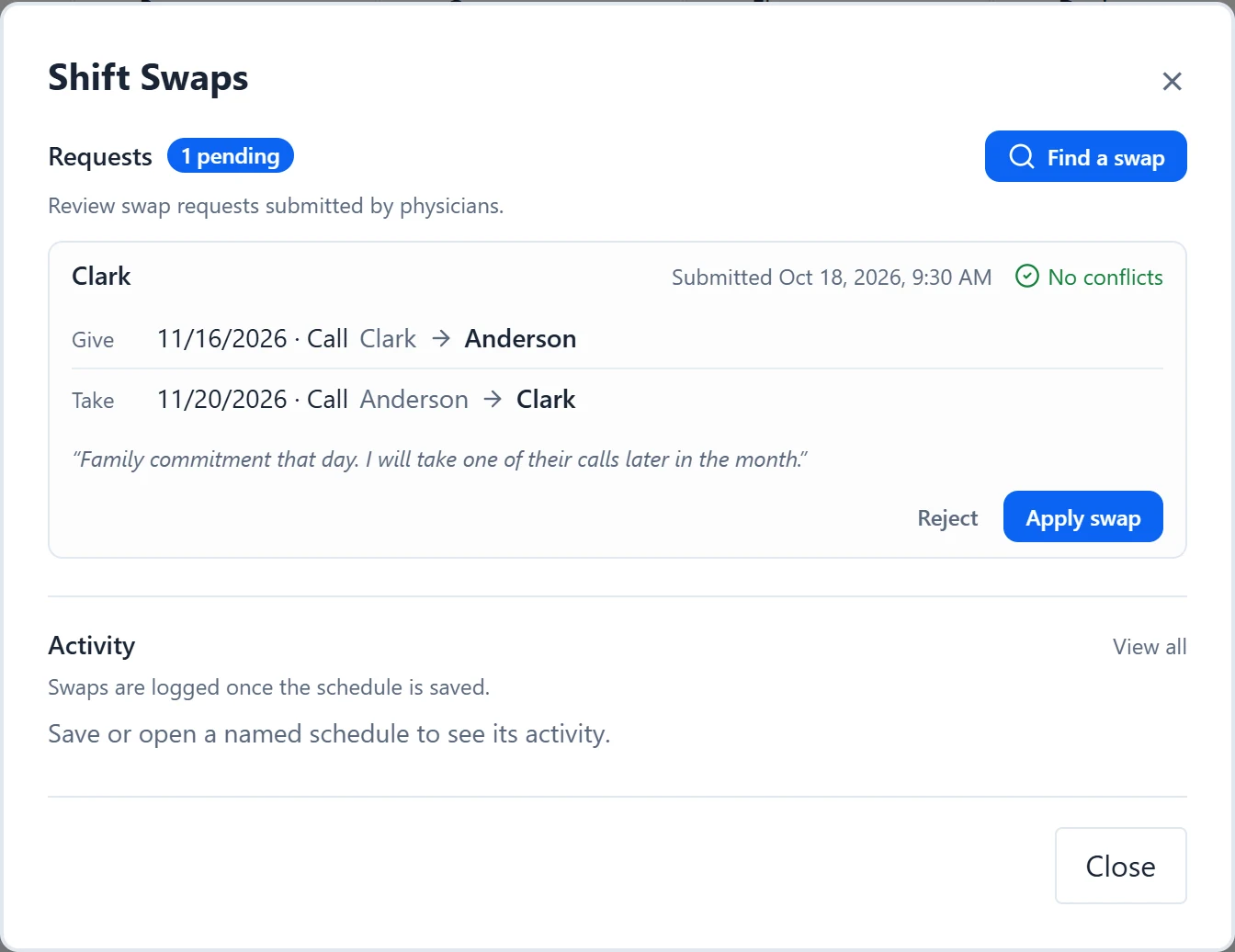
Under Refinements in the sidebar, select “Shift Swaps”. A badge on the button shows how many requests are waiting, and “Requests” shows the same as “N pending”.
- 2
Read the request
Each request shows who sent it and when, then one line per move: date, role, and the physician it moves from and to. “Give” is a shift the requester hands over, “Take” is one they pick up, and “Move” passes a shift between two other physicians in a 3-person trade. Any note from the requester appears in quotes.
- 3
Check for conflicts
“No conflicts” means the swap is clean against the schedule as it stands now. Amber lines under “Schedule changed since proposal; conflicts now exist:” list rules the swap would break. Read them before you apply.
- 4
Watch for changed shifts
A red line such as “3/14/2026 · Call: expected Kim, now Patel” means that shift has changed hands since the request was made. “Apply swap” is then unavailable; reject the request and ask the physician to send a new one.
- 5
Apply or reject
“Apply swap” writes every move to the calendar at once, and “Reject” declines the whole request. A request cannot be partly applied.
- 6
Save and publish
An applied swap changes your working copy of the schedule. Save so the shared link shows it, and publish from “Publish & Log” if you track changes there.
- 7
Check the log
“Activity” below the requests lists applied and rejected swaps. “View all” opens the full activity log filtered to swaps.
Good to know
- “Find a swap” sets up a swap for a physician without a request. Pick the “Physician who needs coverage” and the days to clear, choose who covers each shift and any trade-back, then select “Apply swap”. It updates the schedule immediately, so confirm with everyone involved first.
- When a request is sent, the schedule’s owner and collaborators are emailed, along with the physicians involved who have an email on file. When you apply or reject it, the physicians involved are emailed the outcome.
- Requests are listed for the schedule that is open, and only its owner can apply or reject them in Shift Swaps.
- Swaps are logged once the schedule is saved.