
Review shift counts and fairness
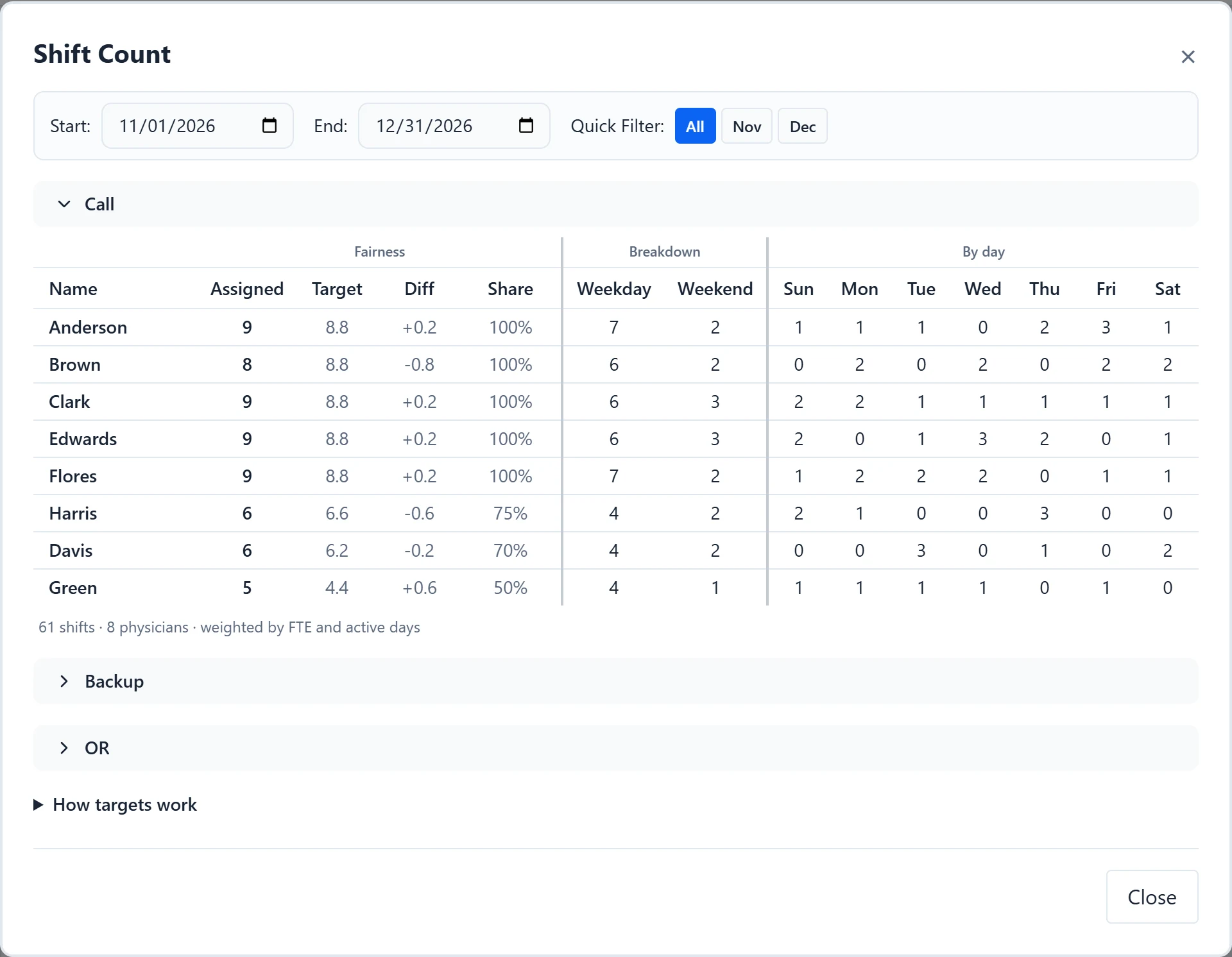
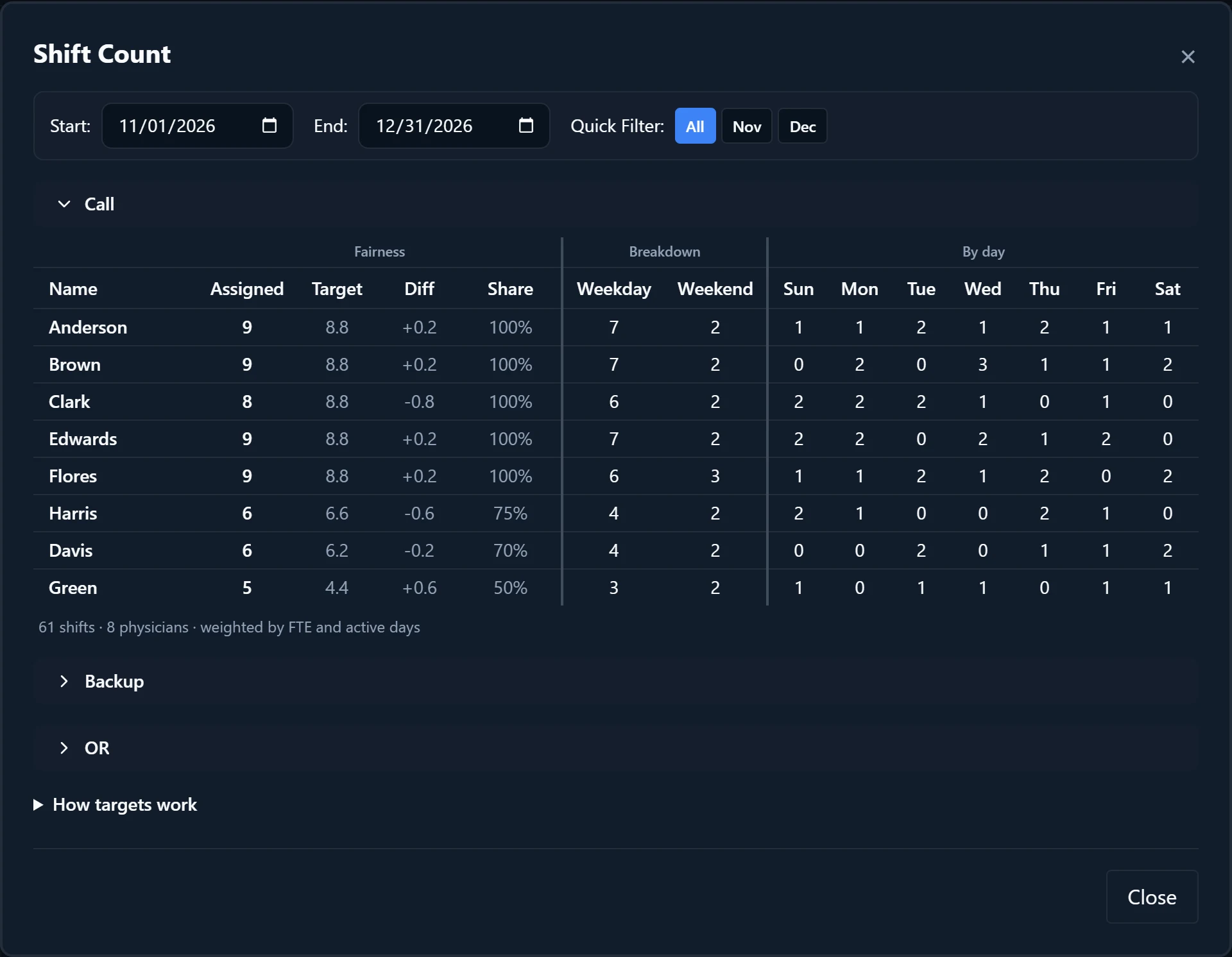
Shift Count shows how many shifts each physician has in every role, next to the fair share they should have. Use it before you publish to check that call is spread evenly, allowing for part-time physicians, new hires, departures, and leave.
- Check that call is shared fairly before publishing.
- Explain to a physician why their count differs from a colleague’s.
- Spot who is over or under their share after manual edits.
How to do it
- 1
Open Shift Count
Select “Count” above the calendar, or press C when no dialog is open and you are not typing.
- 2
Pick the range
Next to “Quick Filter:”, choose “All” for the whole schedule or a month button, shown when the schedule spans more than one month. You can also set “Start:” and “End:” yourself. The range goes back to the full schedule each time you open the dialog.
- 3
Open a role
Each enabled role has its own section, and the first one starts open. Roles whose fairness counts are combined appear as one section marked “Shared count · N roles”; select the pencil beside it to rename it.
- 4
Compare Assigned with Target
“Assigned” is every shift the physician has in the range, holidays included. “Target” is their fair share of the range’s shifts. “Diff” is Assigned minus Target: positive means above their share, negative means below.
- 5
Read Share
“Share” is FTE multiplied by the part of the range the physician was active, relative to a full-time physician active throughout. Hover it to see the working, such as “0.5 FTE × 30 of 30 active days = 50% workload. PTO does not reduce this weighting.”
- 6
Check the breakdown
“Weekday” and “Weekend” split the shifts, and “Sun” through “Sat” show them by day of the week. A “Holiday” column appears when “Count holidays separately” is on in Holidays.
- 7
Find the cause before rebalancing
A large Diff usually traces back to setup: availability, role eligibility, absences, or patterns. Fix the cause and regenerate, or move individual days by hand.
Good to know
- Equal totals are not always fair. A 0.5 FTE physician, someone who starts or leaves partway through the range, or someone on a leave of absence should carry fewer shifts, and Target already allows for that. Compare Diff, not raw totals.
- As “How targets work” at the bottom of the dialog explains, Target is weighted by FTE and active days. Leave and employment dates adjust it; PTO does not. A physician with a week of PTO owes the same share over the range.
- For example, a role has 30 shifts in the range and four physicians who work it: three full-time and one at 0.5 FTE. The line under the table reads “30 shifts · 4 physicians · weighted by FTE and active days”. Each full-time Target is 8.6 and the 0.5 FTE Target is 4.3, half as much. If that physician has 5 shifts, Diff shows +0.7.
- Targets can be fractional, so a Diff under 1 is usually rounding. Diffs of 1 or more are shown in bold.
- FTE comes from “Shift load” in Physician Settings. It sets how many shifts a physician gets relative to everyone else, not their contractual FTE.
- With “Count holidays separately” on, a holiday shift counts in Assigned and Holiday but not in Weekday or Weekend. With it off, a holiday counts as the weekday or weekend it falls on.