
Set up holidays and holiday coverage
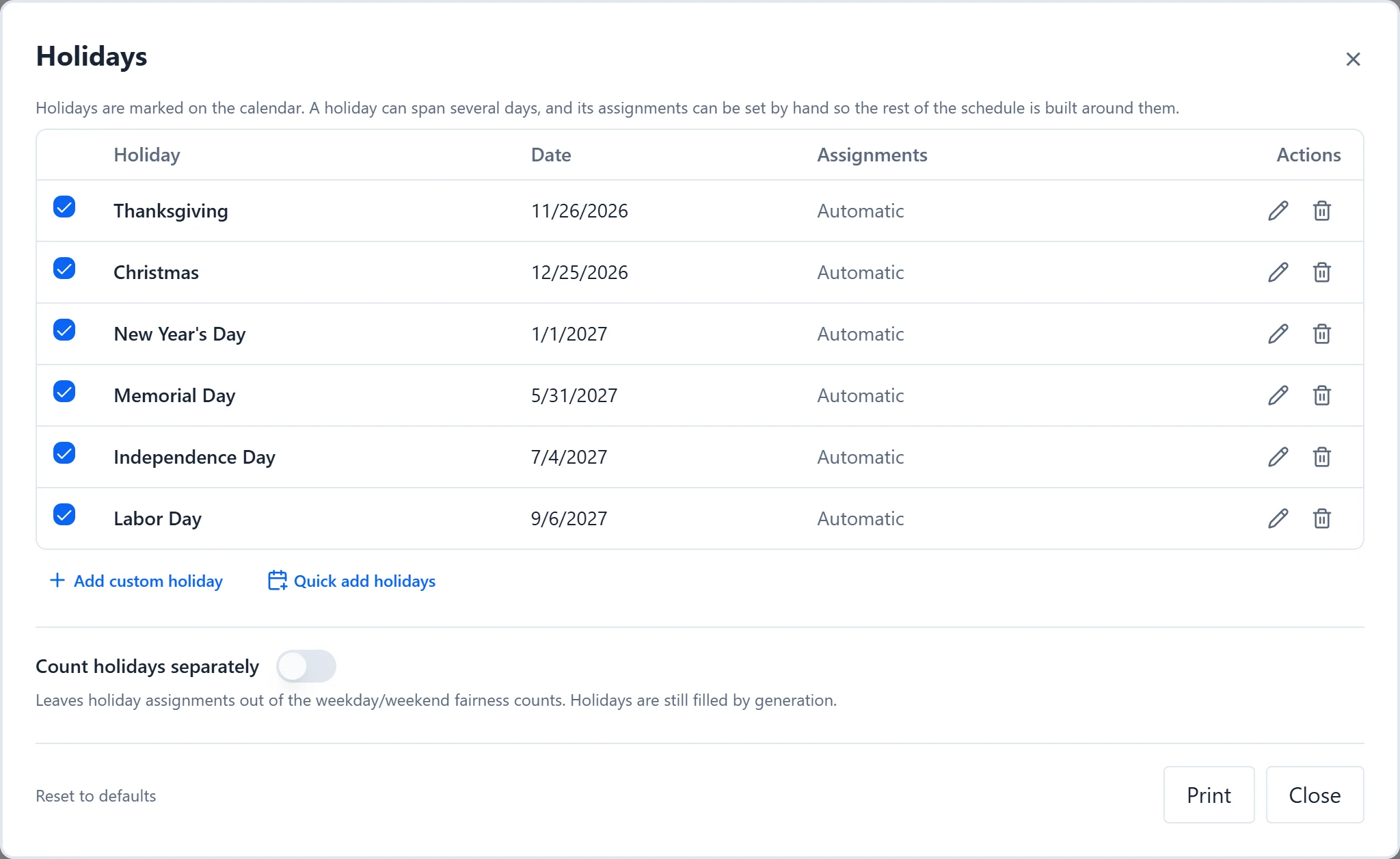
Holidays marks special days on the calendar and lets you decide holiday coverage ahead of time. A holiday can span several days. You can assign a physician to each holiday role, leave a slot empty, or let generation fill it.
- add the holidays your practice observes
- assign holiday call by hand before generating
- keep holidays out of weekday and weekend counts
How to do it
- 1
Open Holidays
Select Holidays in the Setup section of the sidebar. The same editor is a step of Guided setup.
- 2
Add common holidays
Select Quick add holidays, tick the US holidays you observe, and select Add. The list shows only holidays not already on yours, each at its next date.
- 3
Add your own holiday
Select Add custom holiday. Enter a name and start and end dates in the new row, then select Add.
- 4
Set holiday coverage
Select the pencil on a holiday. The row opens a grid of dates by role. For each slot choose Auto to let generation fill it, None to leave it empty, or a physician’s name to set it and lock it on the calendar. Select the check to save the row.
- 5
Switch a holiday off
Untick a holiday’s checkbox to keep it on the list without marking it on the calendar or treating it as a holiday.
- 6
Choose how holidays count
Turn on “Count holidays separately” to leave holiday assignments out of the weekday and weekend fairness counts. Holidays are still filled by generation.
- 7
Print or close
Select Print for a holiday list with its assignments, or Close when you are done. Changes save as you go, so there is no Save button.
Good to know
- The Assignments column shows what you set for each date and role. Automatic means generation fills every slot.
- A physician you name in the grid is placed on the calendar and locked straight away, so generation works around them.
- With “Count holidays separately” on, Shift Count adds a Holiday column, and holiday shifts are left out of Weekday and Weekend.
- The generation summary lists physicians covering more than one holiday, so you can even out holiday call.
- Reset to defaults replaces every holiday on the list, including any assignments you set, with the default US holidays: New Year’s Day, Memorial Day, Independence Day, Labor Day, Thanksgiving and Christmas. It asks first.
- Quick add uses each holiday’s next date. Check that it falls inside your schedule range.
- For example, to give Dr. Patel Christmas call, select the pencil on Christmas, choose Patel for Call on 12/25, leave Backup on Auto, and select the check. Patel appears on 12/25, locked, and generation fills Backup. If Christmas is not on your list, add it with Quick add holidays first.