
Set weekend coverage, patterns and preferred days
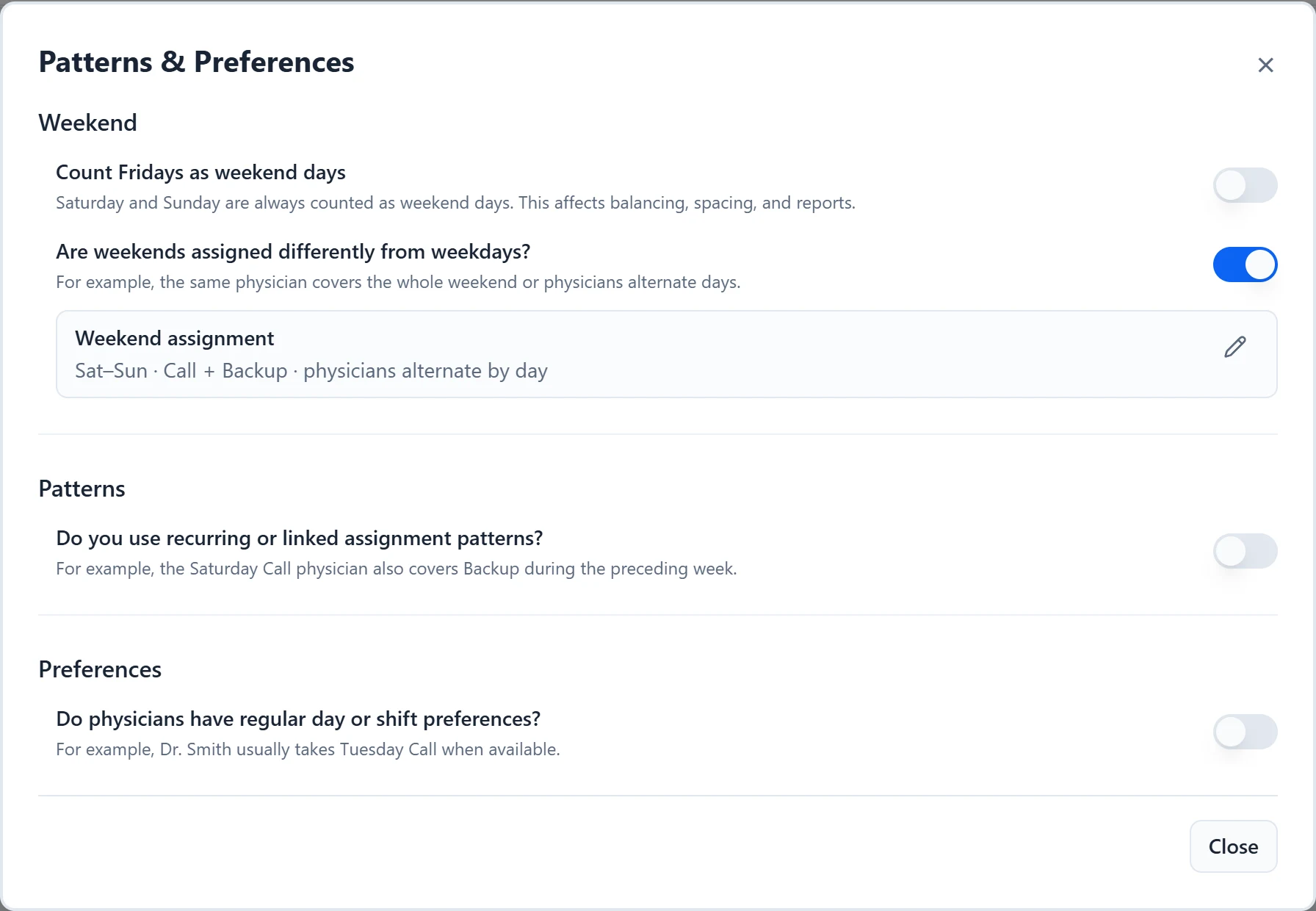
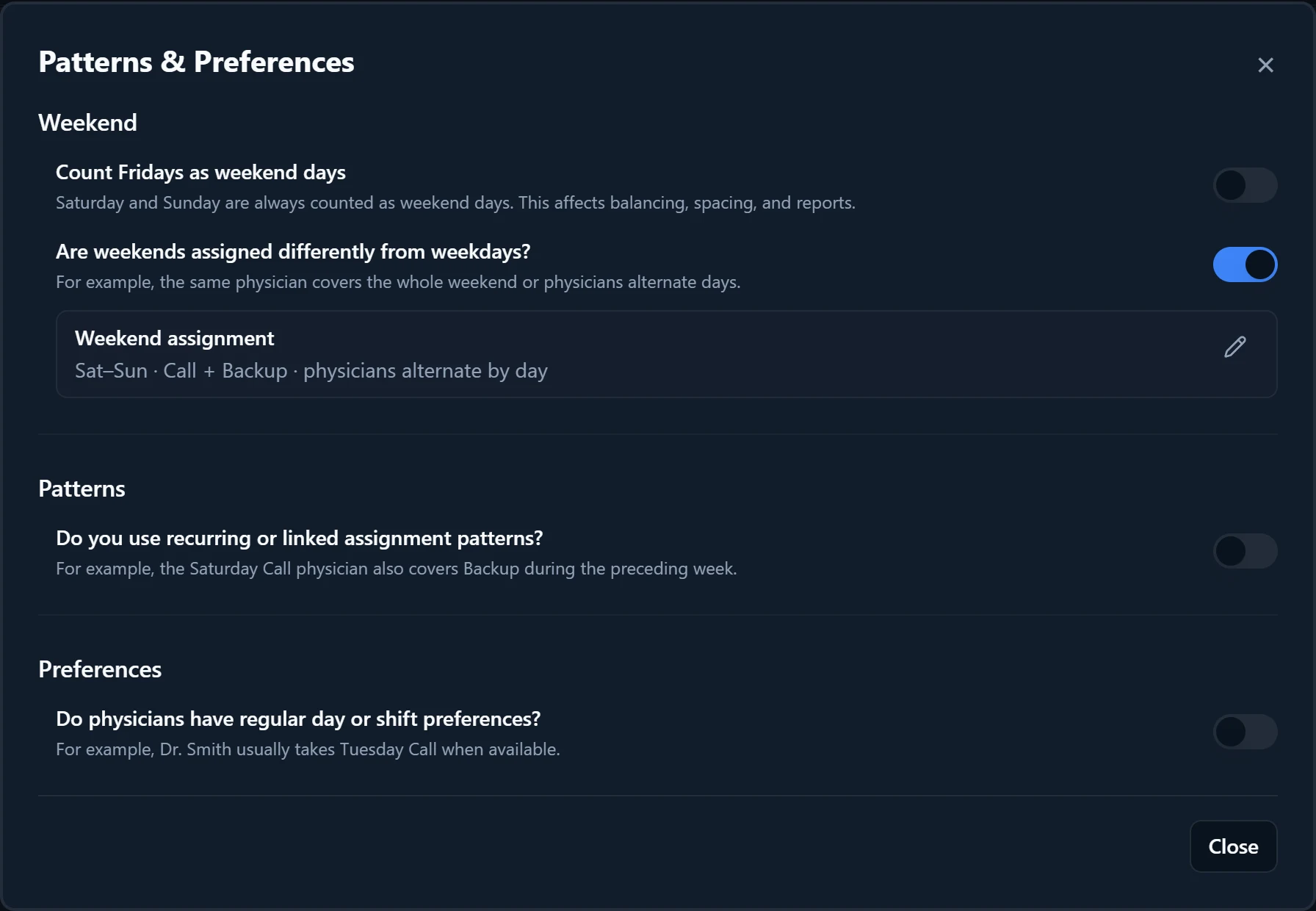
Patterns & Preferences holds the rules that connect one assignment to another: who covers the weekend, recurring or linked patterns between roles, and physicians who usually take a given weekday. Use it once your roles are set up in Coverage & Roles. Changes apply as you make them, so the dialog has only a Close button.
- keep one physician on for the whole weekend, or alternate weekend days
- tie backup call to the call schedule
- give a physician their usual weekday
- Set up your roles in Coverage & Roles first. Patterns and preferences are built from them.
How to do it
- 1
Open Patterns & Preferences
Select Patterns & Preferences in the Setup section of the sidebar. The same editor is a step of Guided setup.
- 2
Decide whether Friday is a weekend day
Under Weekend, turn on “Count Fridays as weekend days” if your practice treats Friday as weekend. Saturday and Sunday always count. This affects balancing, spacing and reports.
- 3
Set how weekends are covered
Turn on “Are weekends assigned differently from weekdays?” to open Weekend assignment. Tick the days, and the roles covered when you have more than one. Choose Same all weekend, Alternate days or Custom, then Save. Matching letters in the grid mean the same physician.
- 4
Add a recurring or linked pattern
Turn on “Do you use recurring or linked assignment patterns?”, or select Add pattern. Pick a common pattern, such as Preceding-Weekday Backup, or build your own with Custom weekly schedule or Custom linked shifts.
- 5
Add preferred days
Turn on “Do physicians have regular day or shift preferences?”, or select Add preference. In Preferred days, tick the roles, then choose a physician or “No preference” for each weekday. Set “Repeats every” for rotations longer than a week, then Save.
- 6
Edit, pause or remove
Select the pencil on a row to edit it, or the trash icon to remove it after a confirmation. Switch a question off to pause everything under it; the setup is kept for when you switch it back on.
- 7
Check the extra sections
“Multi-week patterns” appears when a role, pattern or preference repeats over more than one week. Its start date sets week 1, the Sunday to Saturday week containing it; Reset returns to the default. “Weeks of the month” appears when a role runs on certain weeks of the month; choose First occurrence or First full calendar row.
Good to know
- There is no “avoid” preference. To keep a physician off certain weekdays, set Availability to Some days in their Physician Settings. To keep them off a role, set Roles to Some roles. For specific dates, add an absence.
- A preferred day the physician cannot take, because of time off, a post-call day, a weekly pattern or a locked cell, is skipped and listed under “Preferred days skipped” in the generation summary.
- The “In this schedule range” preview in Preferred days shows each physician’s preferred days against their expected share. Preferences take priority over fairness, so a physician with more preferred days than their share ends up over it.
- Common patterns only appear when your roles fit them. Preceding-Weekday Backup, where the Saturday Call physician also covers Backup Monday to Friday that week, needs roles named with “Call” and “Backup”. Weekday pairing is only for schedules with separate day and night Call and Backup roles. Custom weekly schedule and Custom linked shifts are always available.
- If a linked pattern copies a physician from a role that fills later, its row shows a warning. Move that role higher in Coverage & Roles.
- If a weekend assignment covers Friday while Friday counts as a weekday, a notice offers Count Friday as weekend or Keep as weekday.
- For example, if Dr. Smith usually takes Tuesday Call, add a preference, tick Call and choose Smith under Tuesday. Generation gives Smith Tuesday Call whenever every rule allows it.