
Set up coverage and roles
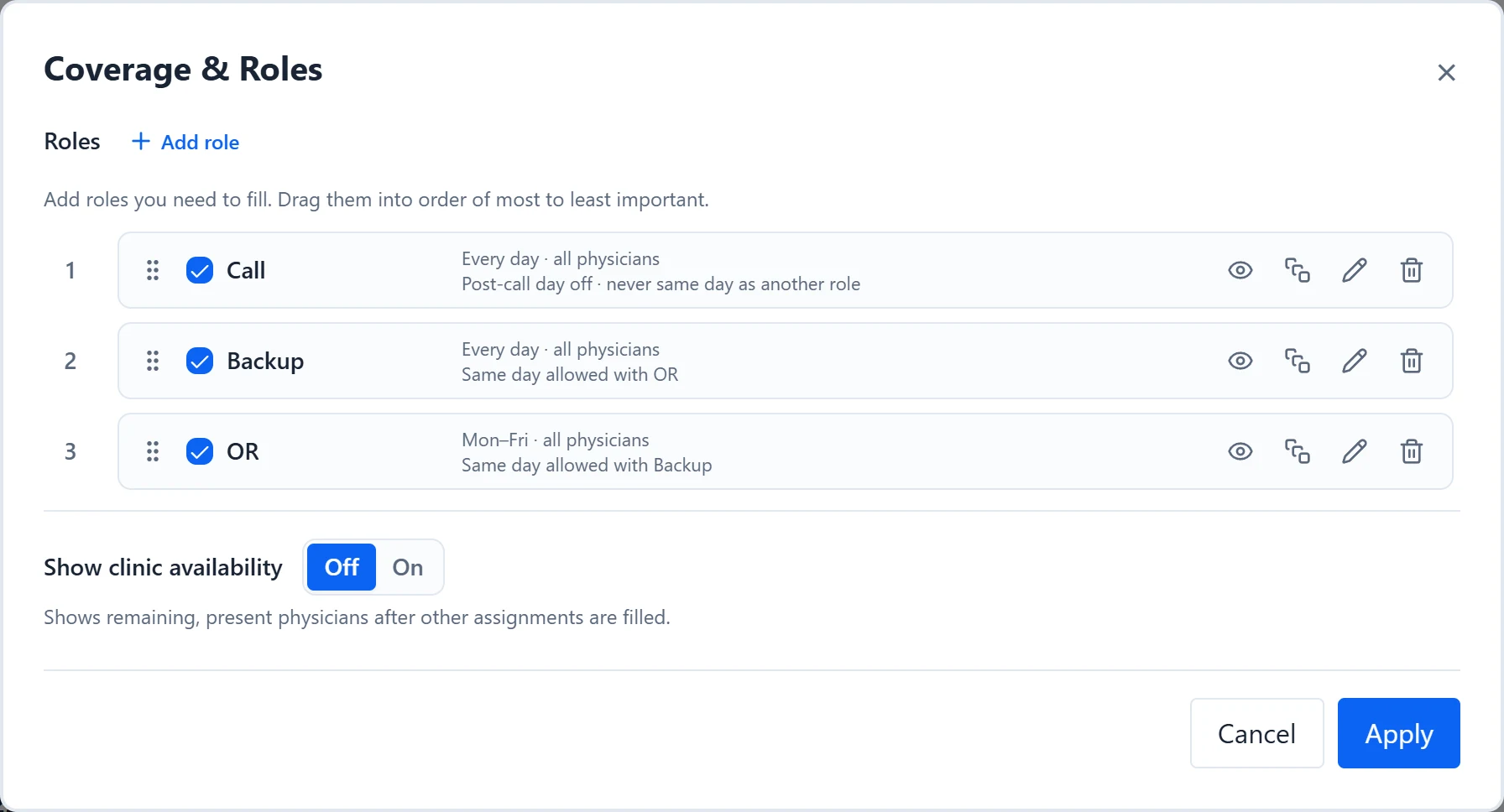
A role is one slot that needs a physician on a given day, such as Call, Backup or OR. Coverage & Roles lists every role, who can work it, which days it runs and which roles fill first. Set it up before you generate, and come back whenever your coverage rules change.
- add a call, backup, OR or any other role
- limit a role to certain physicians or days
- give physicians a post-call day off
- decide which roles fill first
- Add your physicians first, so you can choose who works each role.
How to do it
- 1
Open Coverage & Roles
Select Coverage & Roles in the Setup section of the sidebar, or press R when no dialog is open. The same editor is the Coverage & Roles step of Guided setup.
- 2
Add a role and name it
Select Add role. Enter a Role name and an Abbreviation of up to 10 characters, which is what the calendar shows. Leave the abbreviation blank to get one made from the name.
- 3
Choose who works it
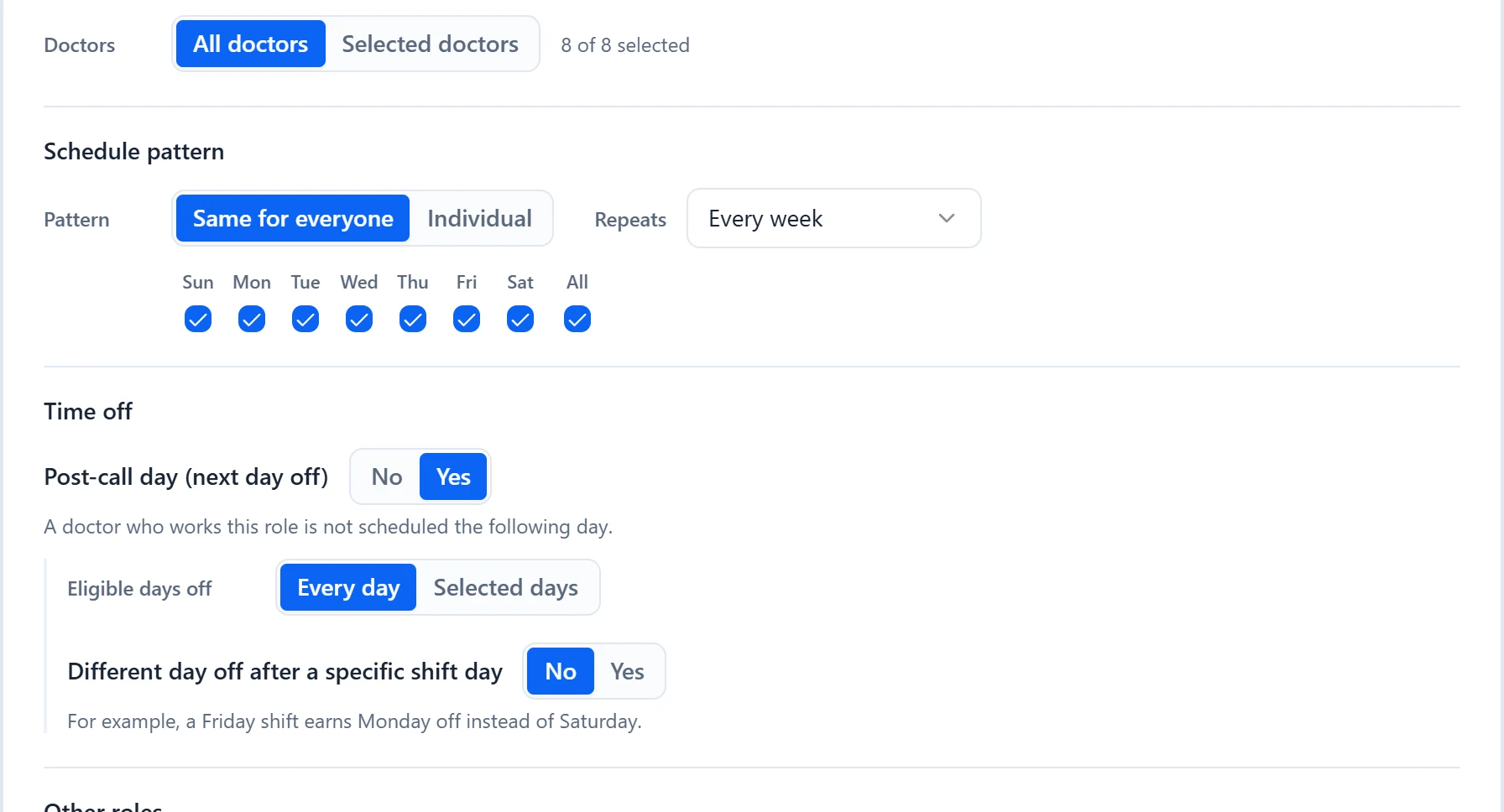
Under Doctors, choose “All doctors” or “Selected doctors”. Selected doctors opens the Roster checklist with Select all; when physicians are in groups, tick a group name to select everyone in it.
- 4
Set the days
Under Schedule pattern, set Pattern to “Same for everyone” or “Individual”, where each selected doctor gets their own days. Set Repeats to “Every week”, “Every __ weeks” (1 to 9, with a row of days for each week) or “Weeks of the month”, then tick the days the role runs.
- 5
Set post-call time off
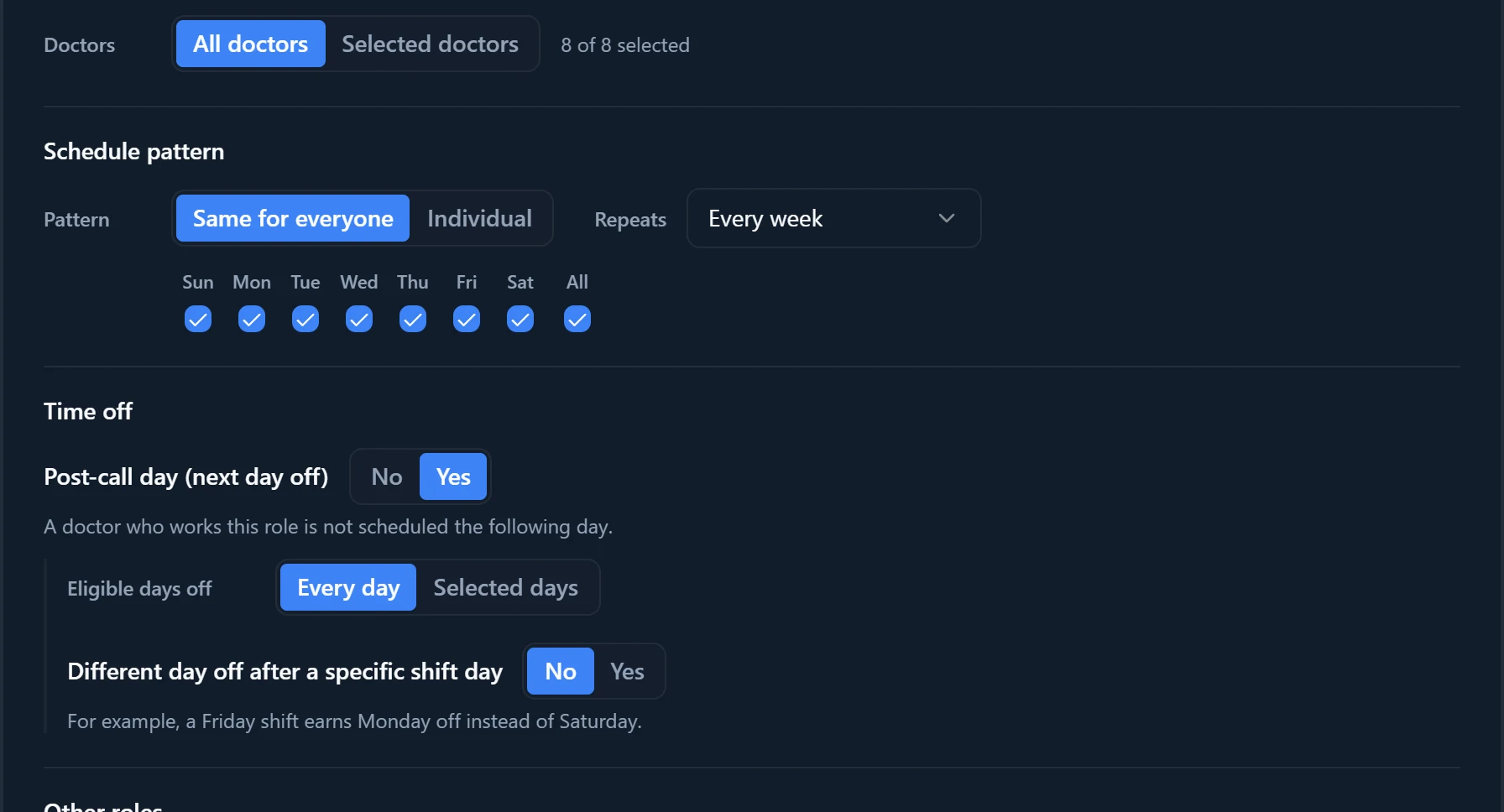
Under Time off, set “Post-call day (next day off)” to Yes so a doctor who works this role is not scheduled the following day. Two more choices then appear: “Eligible days off” limits which days can be that day off; you tick days off, not shift days. “Different day off after a specific shift day” gives a later day off instead, such as Monday after a Friday shift.
- 6
Decide how it combines with other roles
“Can a doctor also work another role that day?” takes No other roles, Selected roles or Any role. “Should fairness counts be combined with other roles?” balances this role with the roles you select on one combined total.
- 7
Save, order and apply
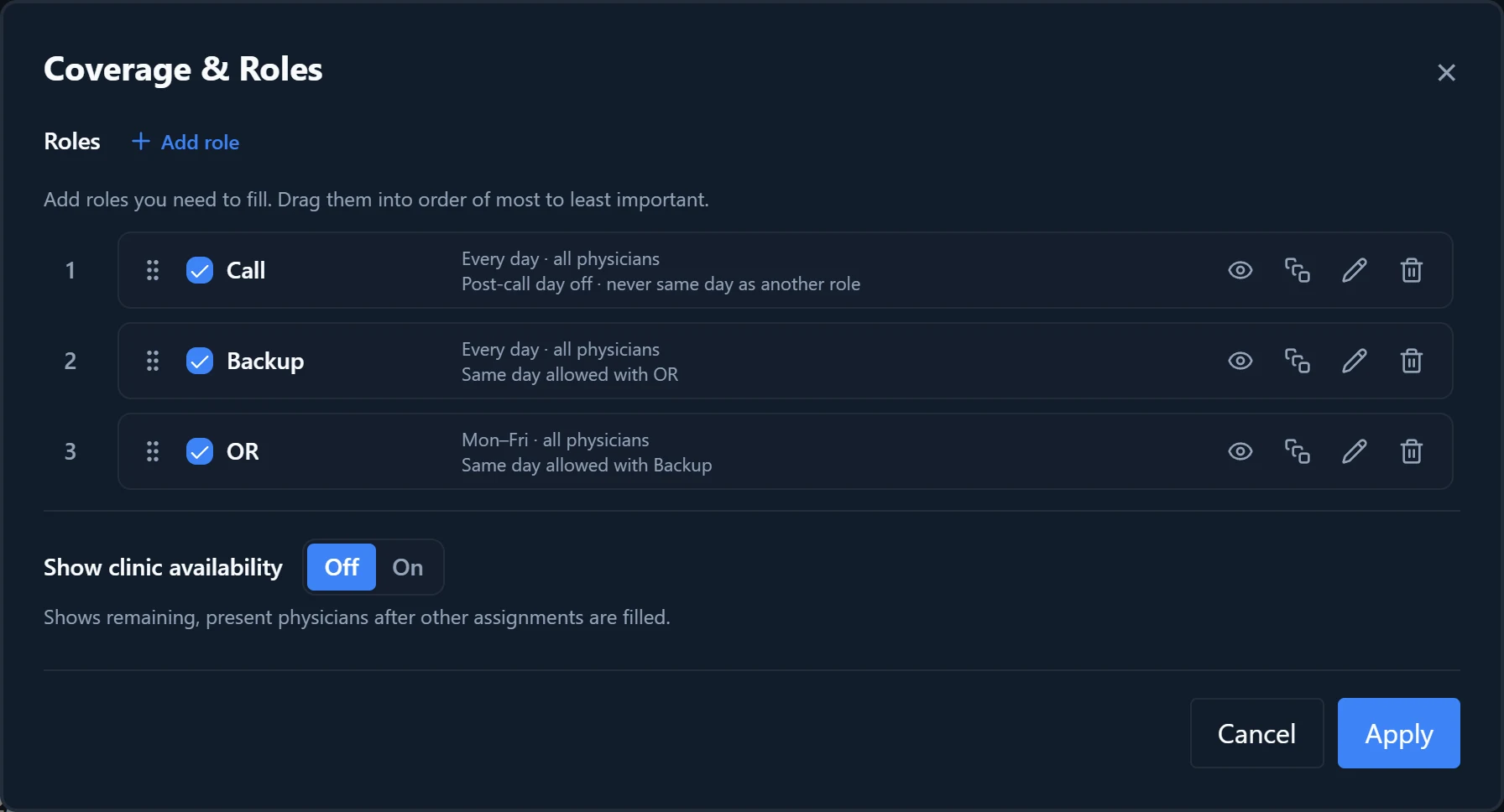
Select Save in the role form. Back in the list, drag roles by their handles into order from most to least important, then select Apply.
- 8
Show clinic availability if you want it
Set “Show clinic availability” to On and select the pencil on the Clinic row. Choose Clinic days, set “Clinic participation” to All physicians or Custom, and pick the roles a physician can hold under “Can also attend clinic while assigned to”.
Good to know
- Backup call is just another role. Add a role named Backup, choose who can take it and its days. To tie backup to the call schedule, such as the Saturday call physician covering backup that week, add a pattern in Patterns & Preferences.
- On each role row, with the checkbox off, generation skips the role but keeps its place in the order. The eye hides the role on the calendar and table without affecting generation. Duplicate adds a copy below it, such as Call2.
- Saving a role in its form, and Duplicate, take effect straight away. Changes to order, the checkboxes, the eye and removals wait for Apply; Cancel drops them.
- Removing a role asks “Remove role?” first. Patterns and preferences that name the role drop it too.
- The same-day answer works both ways. Letting Call share a day with OR also lets OR share a day with Call.
- Combined roles appear together in Shift Count as a “Shared count”. Select its pencil there to rename it.
- Clinic availability is for display only. It shows who is present and free after other assignments are filled, and never holds anyone back from a role.
- Spacing between shifts is handled for you. There is no spacing setting to manage.
- For example, a Call role for all doctors that runs every day, with “Post-call day” set to Yes, keeps Wednesday’s Call physician off Thursday. Add “Different day off after a specific shift day” with a shift on Friday and the day off on Monday, and Friday’s physician also gets Monday off. To make Monday replace Saturday, leave Saturday unchecked under “Eligible days off”.