
Generate a schedule and read the summary
Generate fills the call schedule for a date range from your physicians, roles, patterns, absences, holidays, and locks. When it finishes, a summary shows how much was filled and flags anything worth a second look before you share the schedule.
- Build a first draft of the schedule.
- Rebuild one stretch of dates and leave the rest alone.
- Find out why a shift was left empty.
- Check the roster, roles, absences, and holidays. Generation works from whatever is set up now.
- Lock any assignment you have already promised. Generate replaces every unlocked assignment in the range.
How to do it
- 1
Open Generate
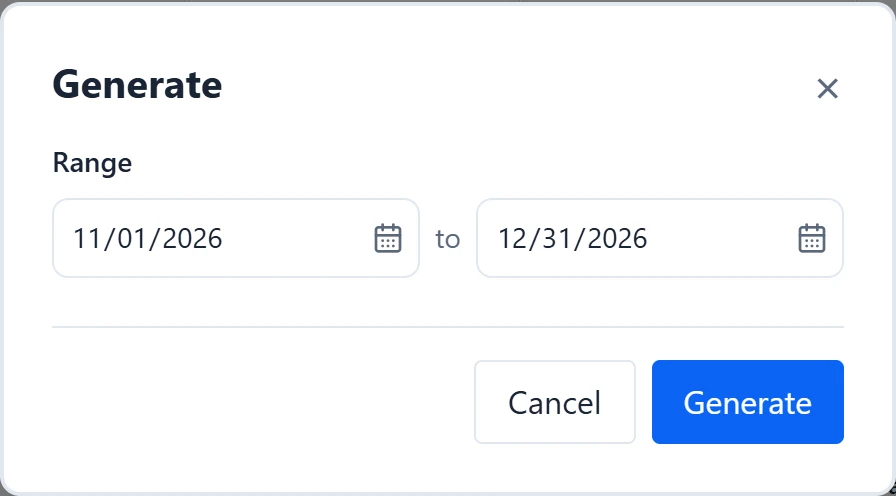
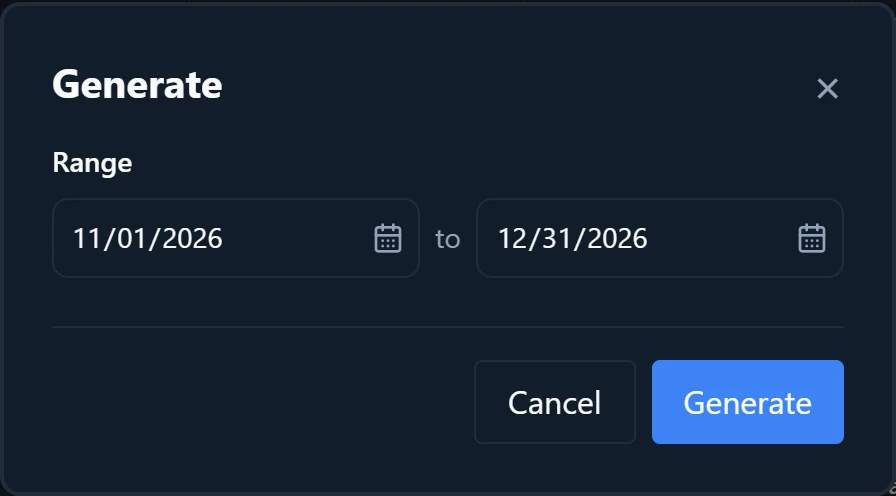
Select “Generate” above the calendar. The “Generate” dialog opens, and nothing changes until you confirm.
- 2
Set the range
“Range” starts on the schedule’s dates. Changing it changes the schedule’s date range too, so Count, Clear Assignments, and Specific Locks follow the new dates.
- 3
Read what will change
The dialog counts the unlocked assignments in the range that will be replaced and the locked assignments that will be kept, with the rest generated around them. It also notes “This range includes dates before today.” when it does.
- 4
Generate
Select “Generate” in the dialog. Assignments outside the range are never touched.
- 5
Read the fill summary
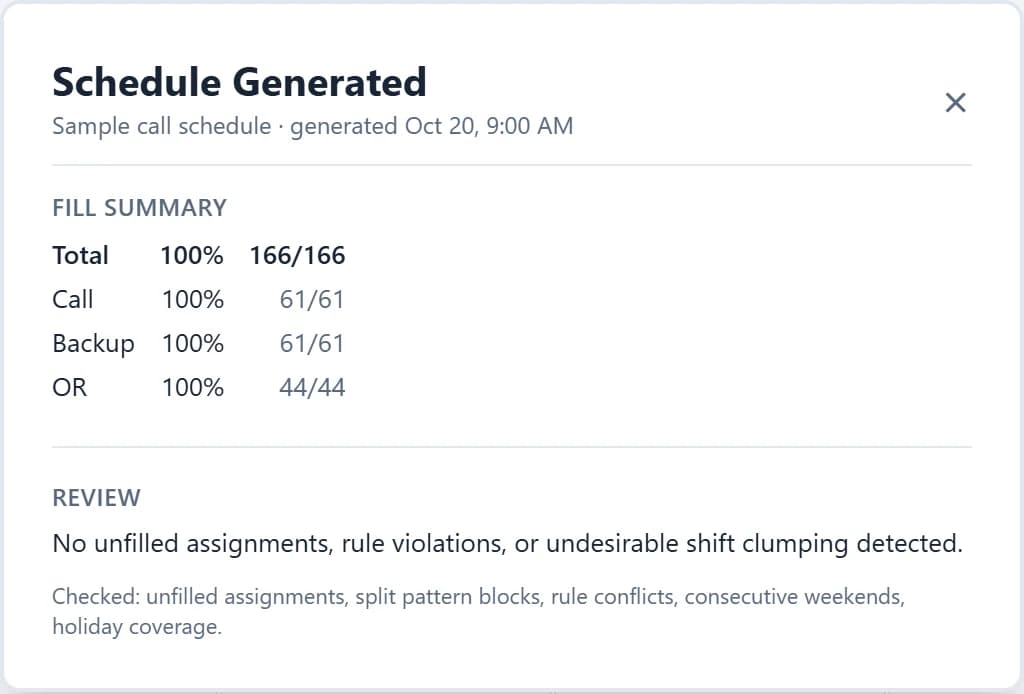
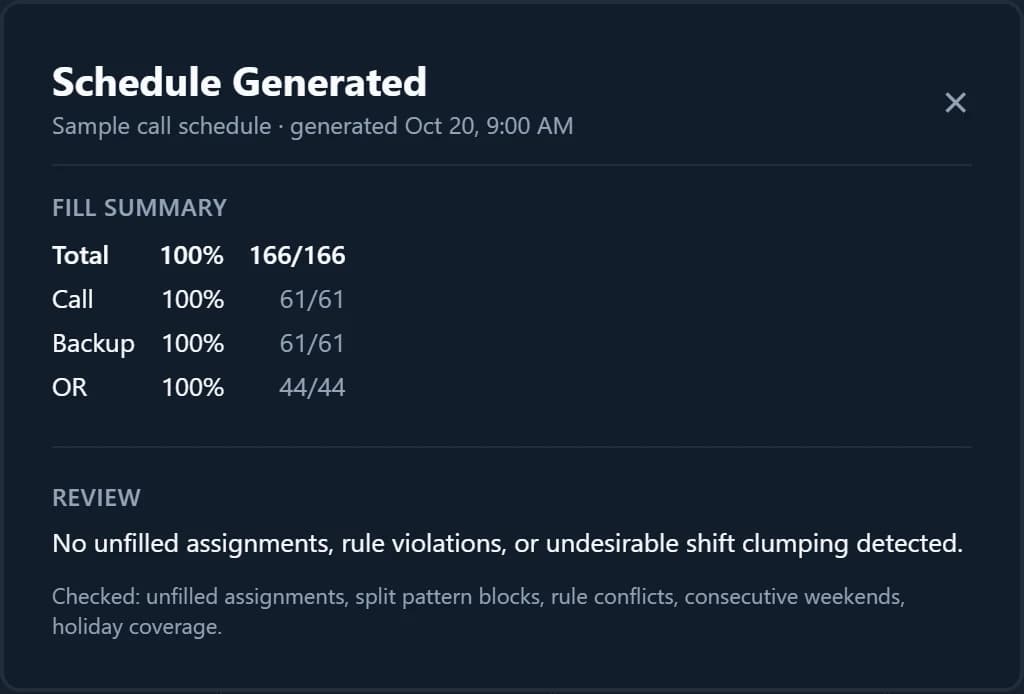
The summary opens when the run finishes. Its title reads “Schedule Generated”, “Schedule Generated with Gaps”, or “Nothing Could Be Scheduled”. “Fill summary” lists a Total row and each role with the percent filled and filled slots out of the total.
- 6
Work through Review
Each flagged row shows a count and a magnifier button that lists its entries. Select an entry to see the reason and jump the calendar to that date, which is briefly highlighted.
- 7
Fix the inputs, then generate again
If a result is not what you want, change availability, role eligibility, patterns, or absences rather than forcing it. Lock what you want to keep and generate again.
Good to know
- Review can list “Unfilled assignments”, “Assignments that break a rule”, “Preferred days skipped”, “Pattern blocks split between doctors”, “Consecutive weekend call streaks” with the longest as “worst N”, and “Physicians covering more than one holiday”. Checks that found nothing are folded into one “Checked” or “Also clear” line.
- Spacing between shifts is handled for you. Check the “Consecutive weekend call streaks” row before you publish.
- A role marked “Skipped: this role is switched off in the fill order” was left out on purpose. Turn its checkbox back on in Coverage & Roles to include it.
- The summary does not block the calendar, and you can drag it by its header. “Summary” above the calendar reopens the last run’s summary. If you edit the calendar afterwards, the panel says its numbers describe the run, not what is on screen.
- There is no undo. On a saved schedule, earlier versions are under Load > “Version history…”.
- For example, to rebuild only April, set the range to 4/1 to 4/30 and generate. March and May stay exactly as they were. The schedule’s date range becomes 4/1 to 4/30 as well, so Count and Specific Locks cover April until you change the range again.