
Record absences and review PTO requests
Absences keeps every date a physician cannot work in one place: time off, CME, leave and the dates their employment starts or ends. Physicians can also request time off from the shared schedule, and you approve or reject each request here. Record absences before you generate so nobody is scheduled while away.
- enter vacation, CME or a leave of absence
- work through PTO requests from physicians
- record a new hire’s start date or a departure
How to do it
- 1
Open Absences
Select Absences in the Setup section of the sidebar, or press P when no dialog is open. A badge on the button counts pending requests.
- 2
Add an absence
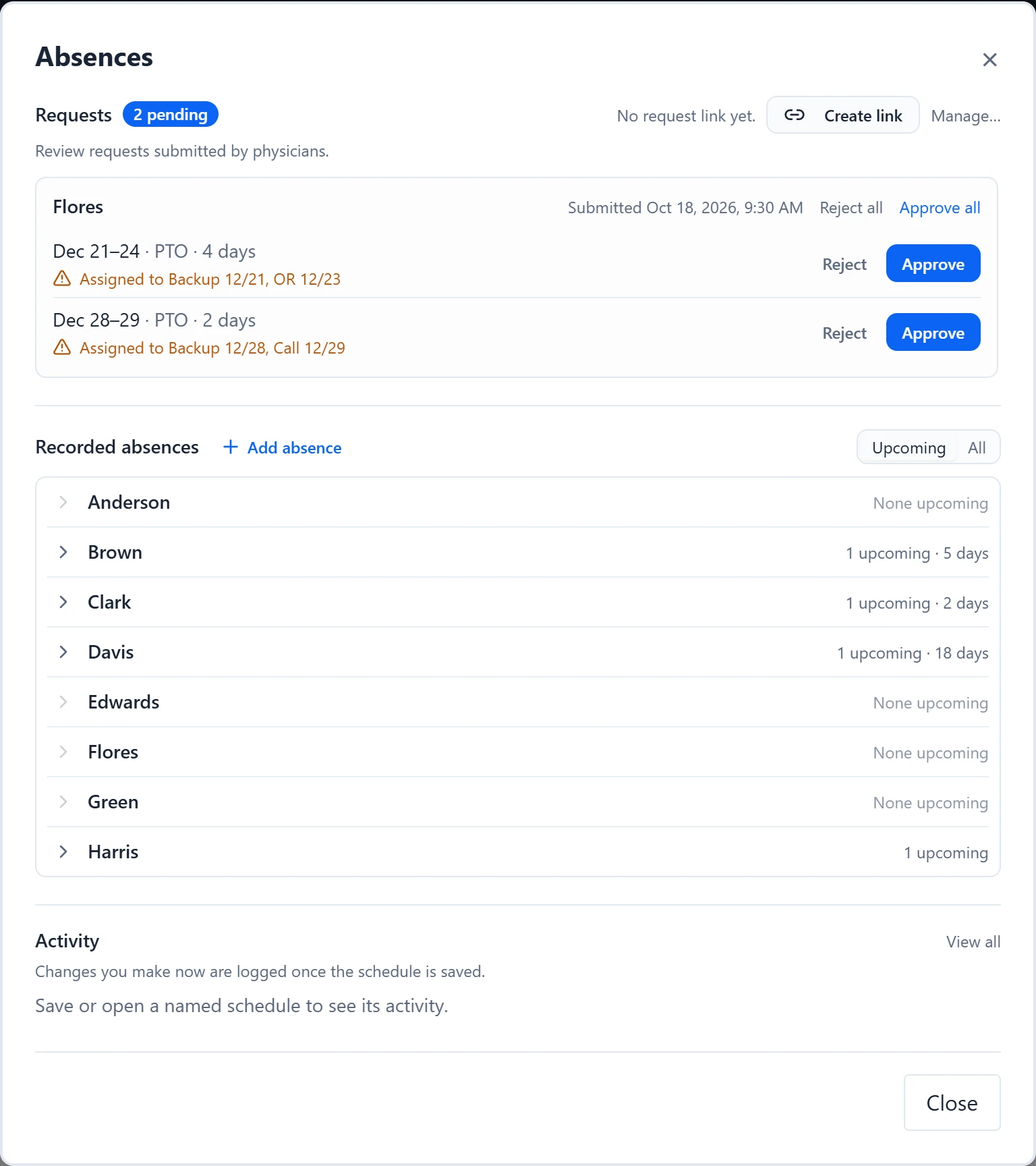
Under Recorded absences, select Add absence. Choose the Physician and the Type, set the From and To dates, add an optional label, and select Add. Employment Starts and Employment Ends take a single date instead.
- 3
Pick scattered days at once
For time off, CME, personal and leave, select Multi-select and click each day in the schedule range. Consecutive days group into ranges, and each range saves as its own absence. Multi-select is not offered while “Repeats annually” is on.
- 4
Review requests
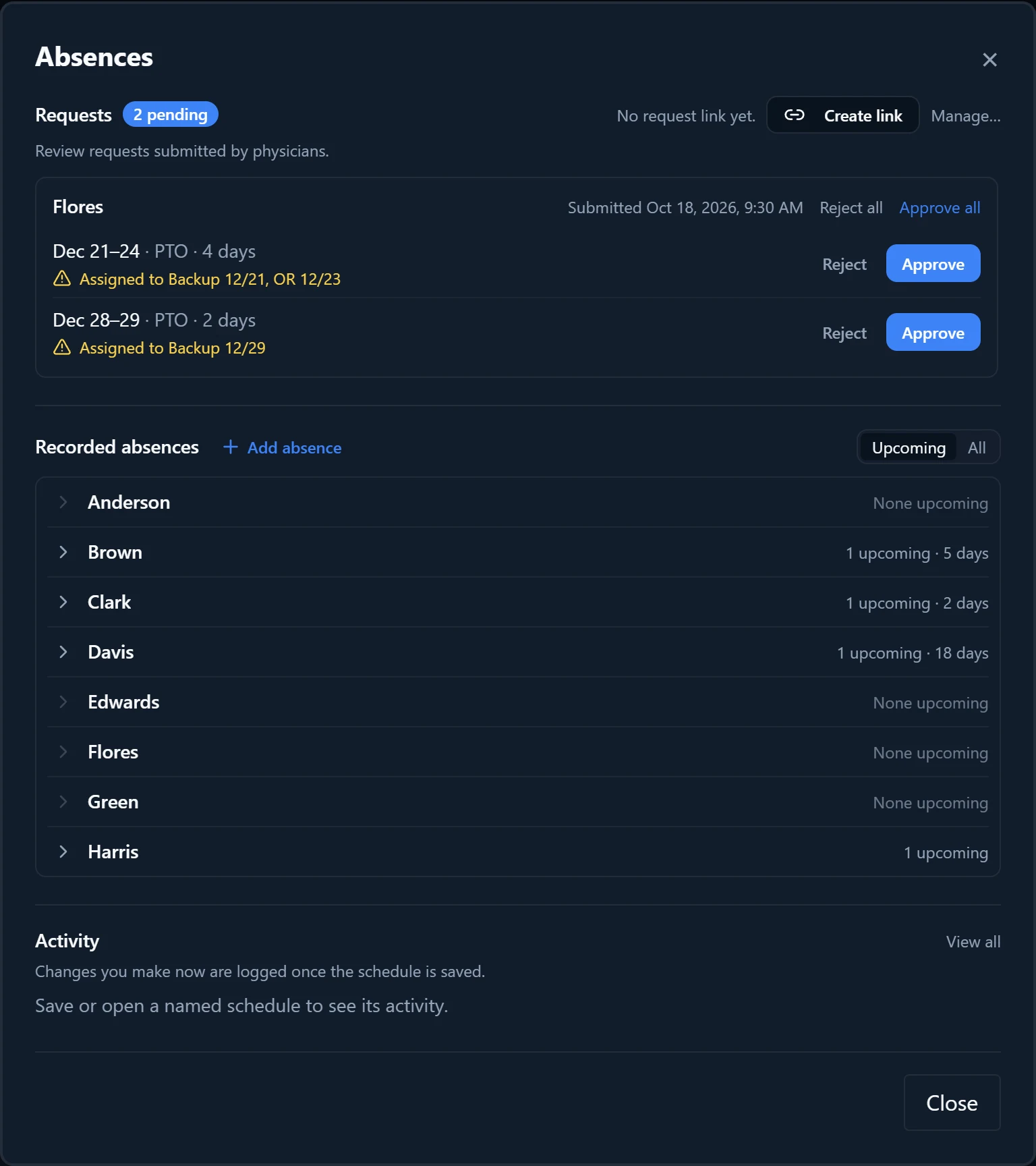
Requests lists each physician’s submission with the date it was sent. Each date range has its own Approve and Reject. When a request has several ranges, Approve all and Reject all act on the whole request.
- 5
Save after approving
Approving adds the dates to the physician’s time off in the open schedule. Save the schedule to keep them.
- 6
Edit or remove an absence
Expand a physician in Recorded absences, then use the pencil to edit a row or the X to remove it. Switch between Upcoming and All to see past absences.
- 7
Check the activity
Activity lists recent absence changes and request decisions. Select View all to open the full log in Publish & Log.
Good to know
- Every absence type keeps the physician off the schedule on those dates. Types differ in whether they lower the physician’s expected share of shifts. Leave of absence, Employment Starts and Employment Ends are Prorated: they lower it. Time off (PTO), CME and Personal / other are Standard: the physician still owes their full share.
- Employment Starts takes the first day employed. Employment Ends takes the last working day.
- Time off (PTO), CME and Personal / other can be set to “Repeats annually”, for dates that come back every year.
- A request to remove PTO shows as “Remove PTO”. Approving it takes those dates off the physician’s time off.
- When requested dates land on shifts the physician already holds, the range shows a warning such as “Assigned to Call 3/14”. Approving does not move those shifts, so reassign them yourself.
- Removing an absence opens the dates for scheduling again. Existing assignments on the calendar are not changed.
- Physicians need the shared schedule link to send requests. If the schedule has a link, Copy request link sits next to Requests. If not, Create link makes one. A schedule that has never been saved shows Save as… first.
- Selecting a physician’s name opens their Physician Settings, which lists the same absences for that one physician.
- For example, Dr. Lee sends PTO for 7/6 to 7/10 and a single day on 8/14. Approve the July range, reject 8/14, then save the schedule. Dr. Lee is emailed each decision if an email address is on file.