
Submit a PTO request
From the shared schedule link you can ask your scheduler to add time off, or to take PTO you no longer need off the schedule. Nothing changes until the scheduler approves it. The request is for call scheduling only and does not replace your organization’s own PTO approval.
- Request days off for the call schedule.
- Cancel PTO that is already on the schedule.
- See whether your time off lands on a shift you already hold.
- The shared schedule link from your practice.
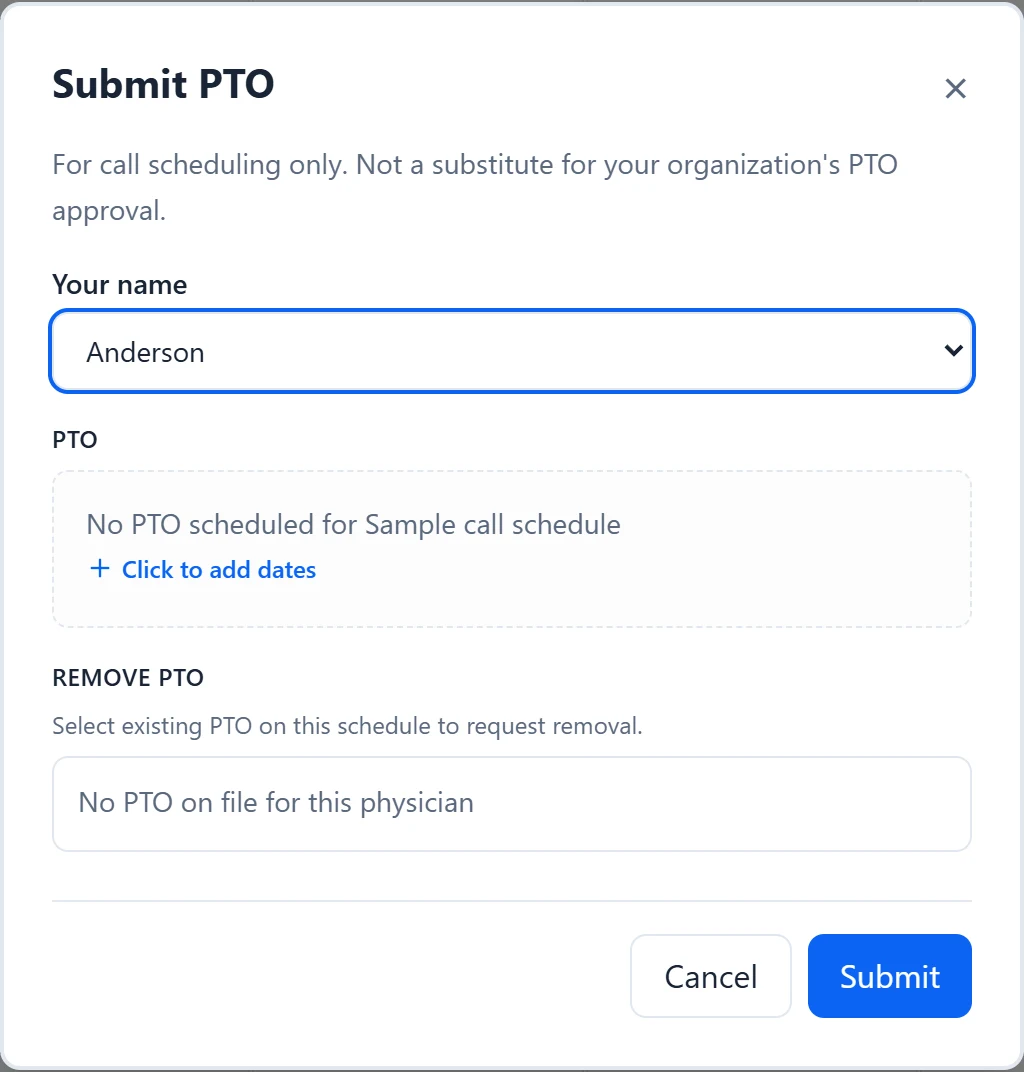
How to do it
- 1
Open Submit PTO
On a computer, choose “Submit PTO” under Requests in the sidebar. On a phone, open the Requests menu at the top and choose “Submit PTO”.
- 2
Check your name
“Your name” starts on the first physician in the list, so pick yours before adding dates.
- 3
Add a date range
Click “Click to add dates”, set From and To, then choose “Add dates”. To follows From until you change it, so a single day needs only From.
- 4
Pick scattered days
For days that are not in a row, choose “Multi-select”, click each day to toggle it, then choose “Apply”. Consecutive days group into ranges. Multi-select only offers days inside the schedule’s dates.
- 5
Adjust your list
Each range appears in the PTO list. Click a range to change it and choose “Update”, or use the X to drop it. Use “Add” to add another range.
- 6
Ask to remove PTO
Under “Remove PTO”, tick any PTO already on file that you no longer need. It appears under “Marked for removal:”. One request can add and remove dates together.
- 7
Check conflicts and submit
If you already hold a shift on a date you are requesting, a “Conflicts in this range” box lists each date and role, and the button changes to “Submit anyway”. Otherwise choose “Submit”. A confirmation says the schedule coordinator will review it before it appears on the schedule.
Good to know
- Your scheduler and anyone they collaborate with on the schedule get an email for each request. If your email address is on file with your practice, you get a copy, and another email when the request is approved or rejected.
- Each date range is reviewed on its own, so one range can be approved while another is rejected.
- Approval records the time off. A shift you already hold on that day stays yours until the scheduler reassigns it. To hand a shift to a colleague yourself, use Shift Swap.
- Approved changes show on the shared link once your scheduler saves the schedule.
- Changing “Your name” clears any PTO you marked for removal.
- For example, to request 3/14 through 3/18 plus 3/25, add 3/14 to 3/18 as one range, then use Multi-select to add 3/25. If you are on Call on 3/16, the conflicts box shows “3/16: Call” before you submit.