
Sync the schedule to your calendar
Calendar Sync gives each physician a feed of their own shifts, plus one feed with every assignment. You subscribe once and your calendar app keeps it up to date. Anyone with the schedule’s share link can open it, and schedulers can also reach it from the Share dialog.
- See your call shifts in the calendar you already use.
- Put the whole call schedule in a shared calendar.
- Send every physician their own feed link.
- The schedule needs a share link. Schedulers create one in Share schedule.
How to do it
- 1
Open Calendar Sync
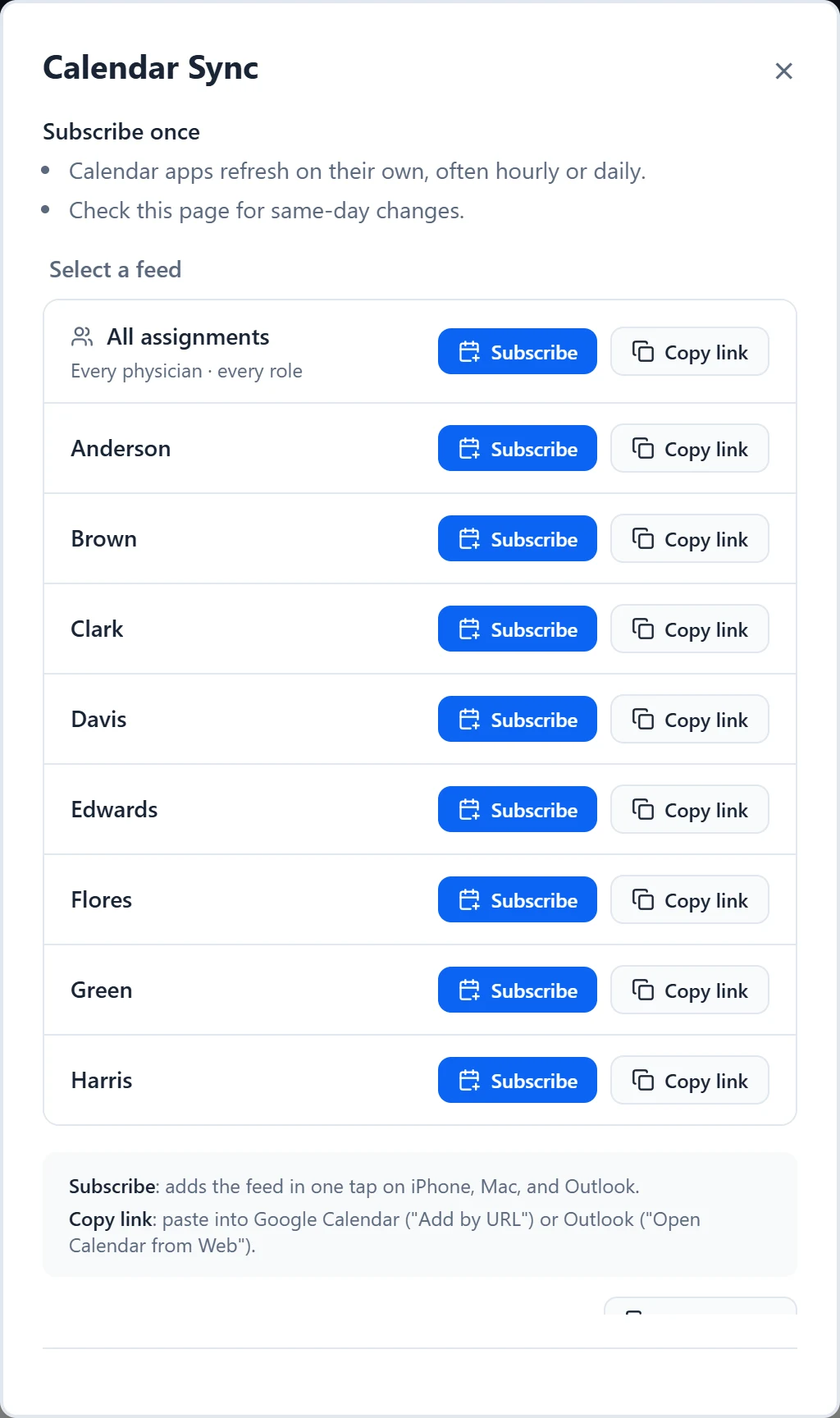
On the shared schedule, choose “Calendar Sync” under Tools, in the sidebar on a computer or the Tools menu on a phone. Schedulers can instead choose Share, then “Sync” in the Calendar column of Share schedule. “Sync” stays unavailable until the schedule has a share link.
- 2
Pick a feed
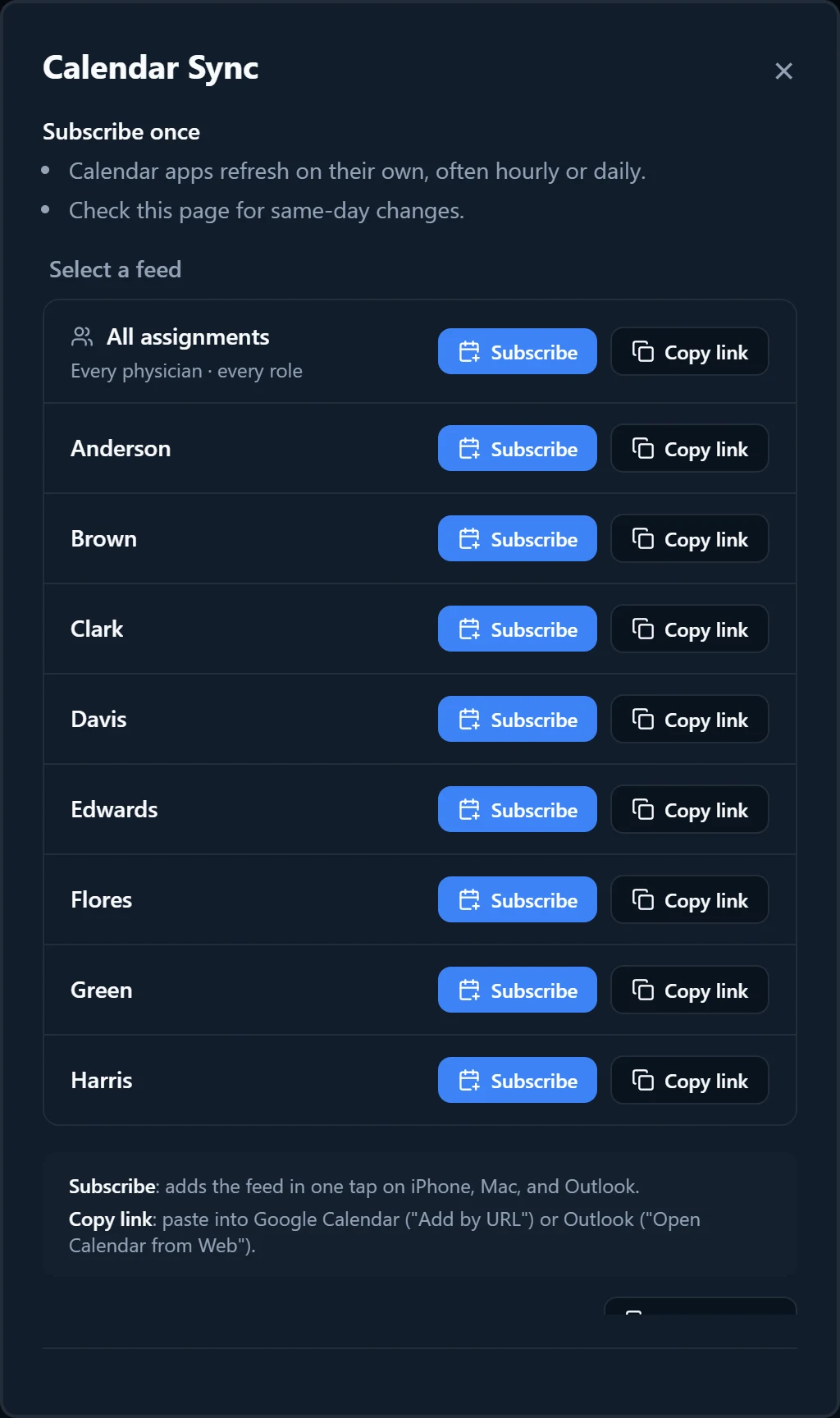
Under “Select a feed”, find your own name for just your shifts, or “All assignments” for every physician and every role.
- 3
Subscribe on iPhone, Mac, or Outlook
Choose “Subscribe” on that row. Your device hands the feed to its calendar app, such as Apple Calendar or Outlook, where you confirm the subscription.
- 4
Add it to Google Calendar
Choose “Copy link” on that row. In Google Calendar on a computer, click + next to “Other calendars”, choose “From URL”, paste the link, and click “Add calendar”. The calendar then also appears in the Google Calendar app on your phone.
- 5
Add it to Outlook on the web
Choose “Copy link” on that row. In the Outlook calendar, select “Add calendar”, then “Subscribe from web”, paste the link, give the calendar a name, and select “Import”.
- 6
Send everyone their link
“Copy all links” copies the “All assignments” link and one line per physician with their own link, ready to paste into an email to the group.
Good to know
- Each shift is an all-day event named for the role, such as “Call”. In the “All assignments” feed each event also names the physician, such as “Call: Dr. Adams”.
- Calendar apps refresh subscriptions on their own timetable, often hourly or daily, and you cannot force it from here. For same-day changes, check the schedule page itself.
- The feed follows the saved schedule. Changes appear after your scheduler saves, and then after your calendar app next refreshes.
- Each physician’s link stays the same if their name is edited, so a subscription survives a rename.
- A feed stops updating if the share link is regenerated or removed, or the schedule is deleted. The calendar can keep showing old shifts with no warning, so delete the old subscription and subscribe again with the new link.
- Subscribed calendars are read only. To change a shift, use Shift Swap or Submit PTO on the shared schedule.