
Use the On Call page
The On Call page answers one question: who is on call right now, and how do I reach them. It lives at the schedule’s share link with /oncall on the end, so an answering service, a nurse, or a colleague can open it on a phone. It is off until the scheduler turns it on, because it publishes physician contact numbers to everyone with the link.
- Get a page the answering service can check at 3am.
- Help physicians find who is covering and call them in one tap.
- Save the schedule under a name. The On Call settings only appear for a named schedule you own.
- Add phone numbers in each physician’s settings, under “Phone (optional)”. Choose Cell, Office, Pager, or Other with your own label, and use “Add another number” for more.
How to do it
- 1
Open the On Call settings
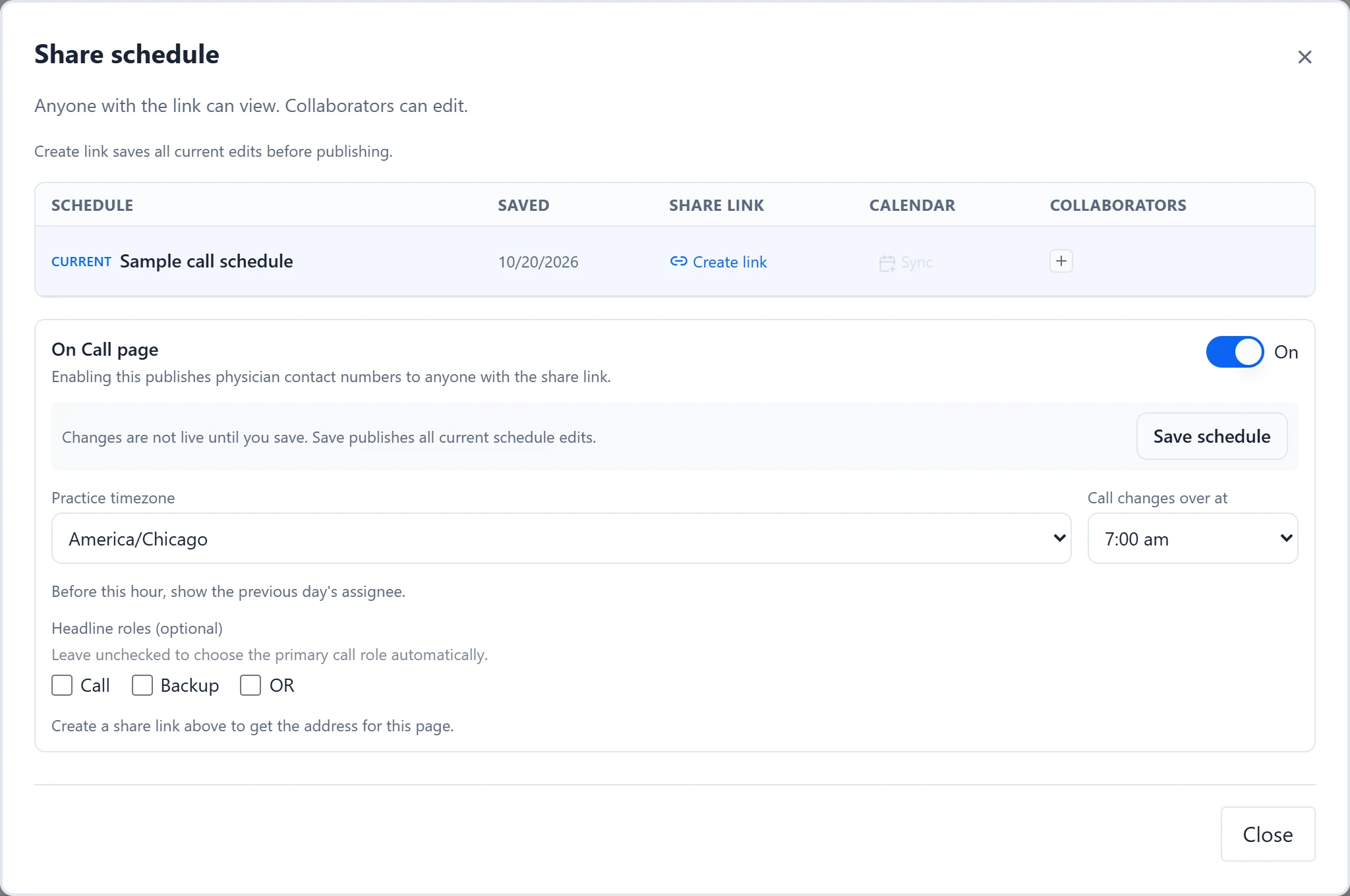
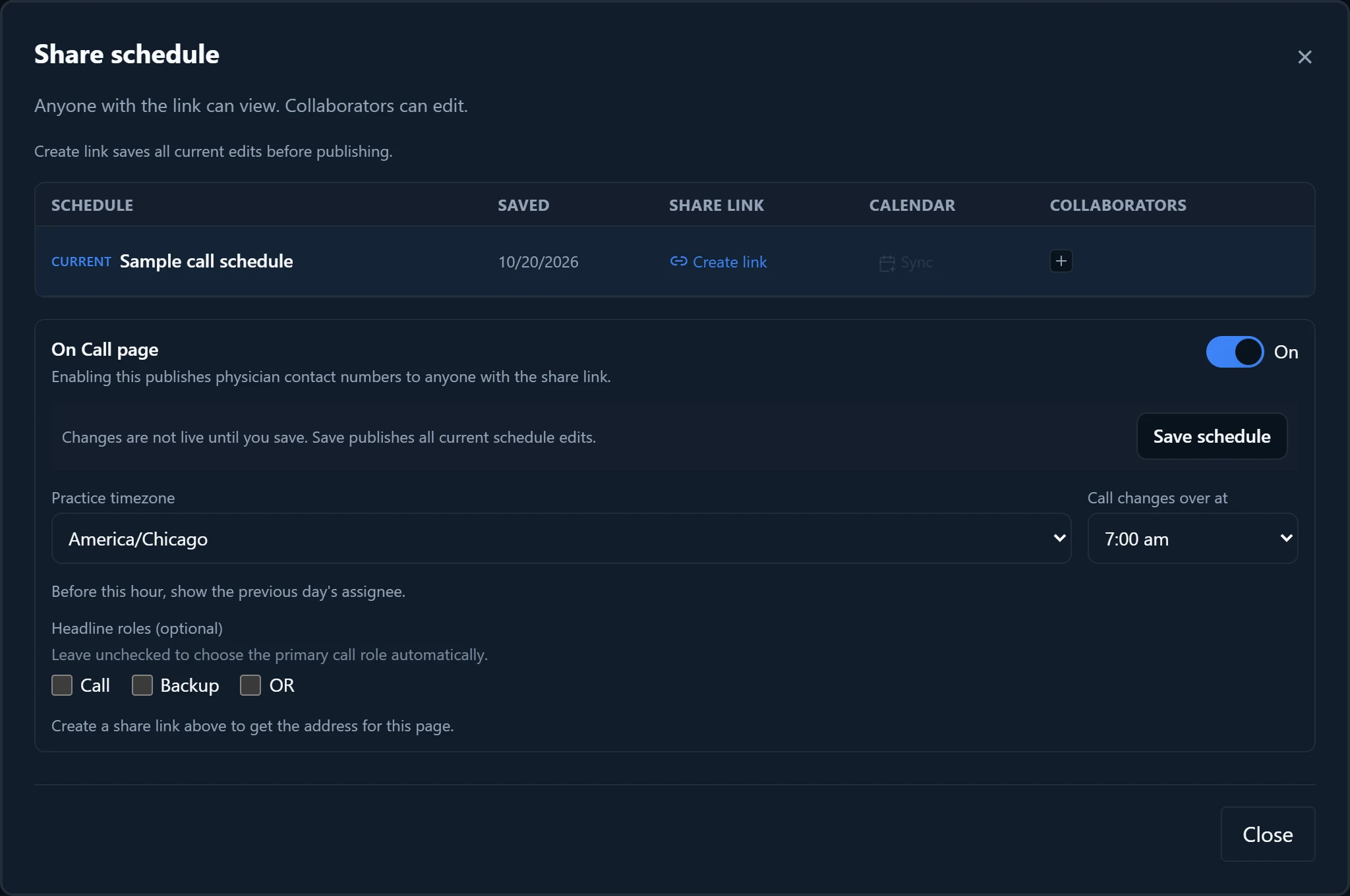
Scheduler: choose Share in the sidebar. The “On Call page” section is at the bottom of “Share schedule”.
- 2
Turn it on
Switch it to On. The remaining settings appear once it is on.
- 3
Set the practice timezone
Choose your practice’s zone in “Practice timezone”. The page works out “now” in that zone, whatever timezone the reader is in.
- 4
Set the changeover time
In “Call changes over at”, choose the hour call hands over. Before that hour, the page still shows the previous day’s physician, which is who someone calling at 3am needs.
- 5
Choose headline roles
Under “Headline roles (optional)”, tick the roles to show large at the top. Leave them all unticked to let the page choose the primary call role. Other roles appear as compact rows underneath. Roles you have hidden from the calendar are left out.
- 6
Save to make it live
Changes here are not live until you save. Select “Save schedule” in the section, which saves all your current schedule edits too, or save the schedule as usual.
- 7
Share the address
Once the schedule has a share link, the section shows “Address after saving:” with the page address. Without a link, it says to create one above first. Physicians can also reach the page from the “On Call” button on the shared schedule.
Good to know
- Readers see the schedule name and “On call · as of” the current time in the practice’s zone. Each headline role shows the physician’s name and their numbers as tap-to-call rows labelled Cell, Office, Pager, or your own label, plus an email link when one is on file. A physician with none shows “No contact number on file.”
- Readers can step to the previous or next day within the schedule’s dates, then return with “Back to now”. “View the full schedule” opens the shared schedule.
- An open page checks for updates every minute and when you return to it, so a phone left open overnight follows the changeover.
- While the page is off, the “On Call” button does not appear on the shared schedule, and the address shows “This on-call page is not turned on for this link.” No contact numbers are shown.
- The page shows the last saved schedule. Edits you have not saved do not appear there.