
Physicians who join or leave mid-schedule
A new hire who starts partway through a call schedule, or a physician who leaves before it ends, should only carry call for the days they are employed. In Orchestrate Health you record the start date or last day as an absence, and their fair share of shifts is prorated to the days they are active. Locks and regeneration then let you rebuild the affected dates without disturbing assignments you have already confirmed.
- Add a new hire who starts partway through the schedule.
- Take a departing physician off every shift after their last day.
- Cover a leave of absence fairly.
How to do it
- 1
Record a start date
Add the physician with “+” in the Physicians box. In Absences, choose “Add absence”, pick the physician and the Type “Employment Starts”, and enter the “Start date”, their first working day. Check “Roles” in their Physician Settings so they are in the roles they will work.
- 2
End a departing physician
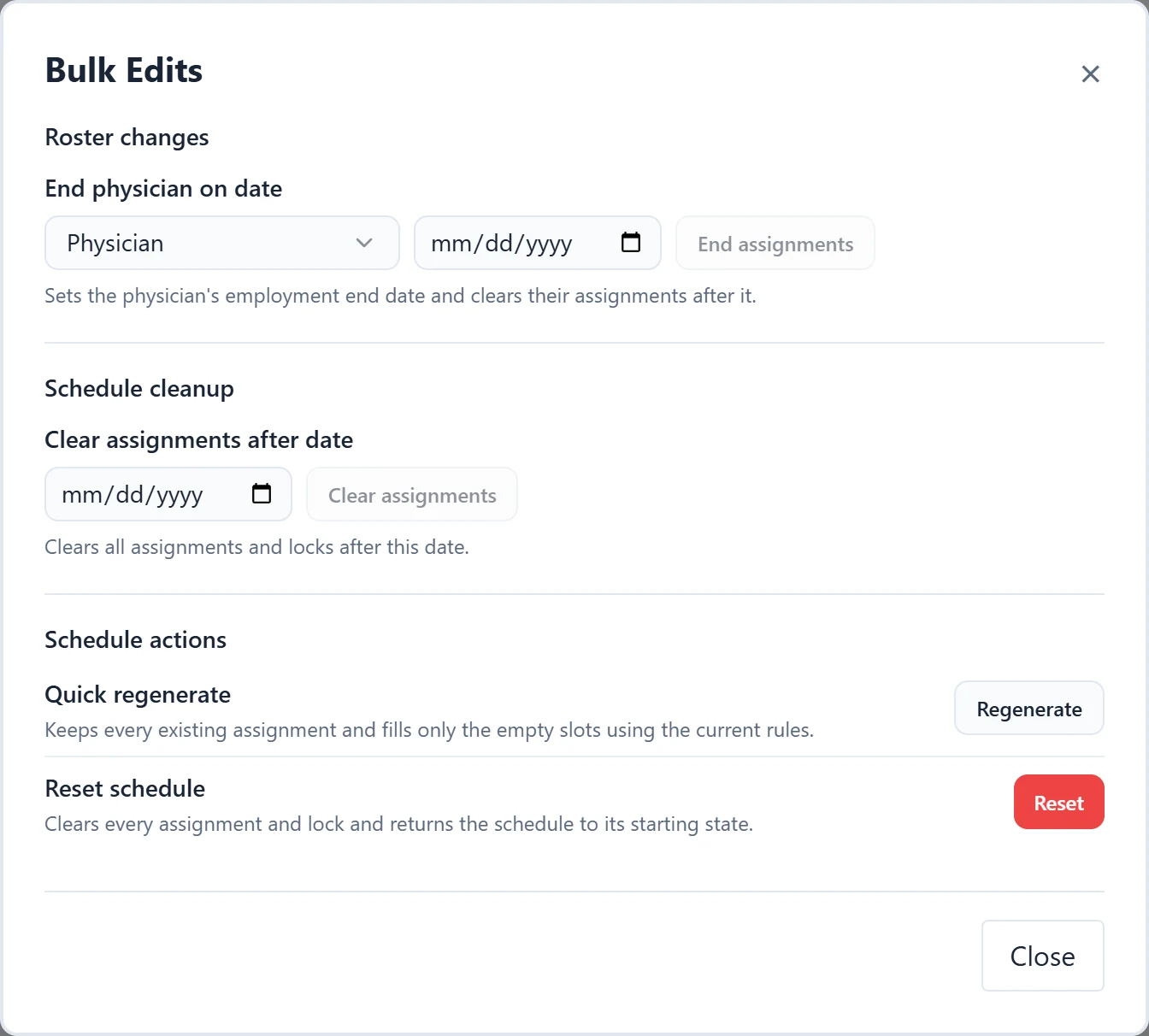
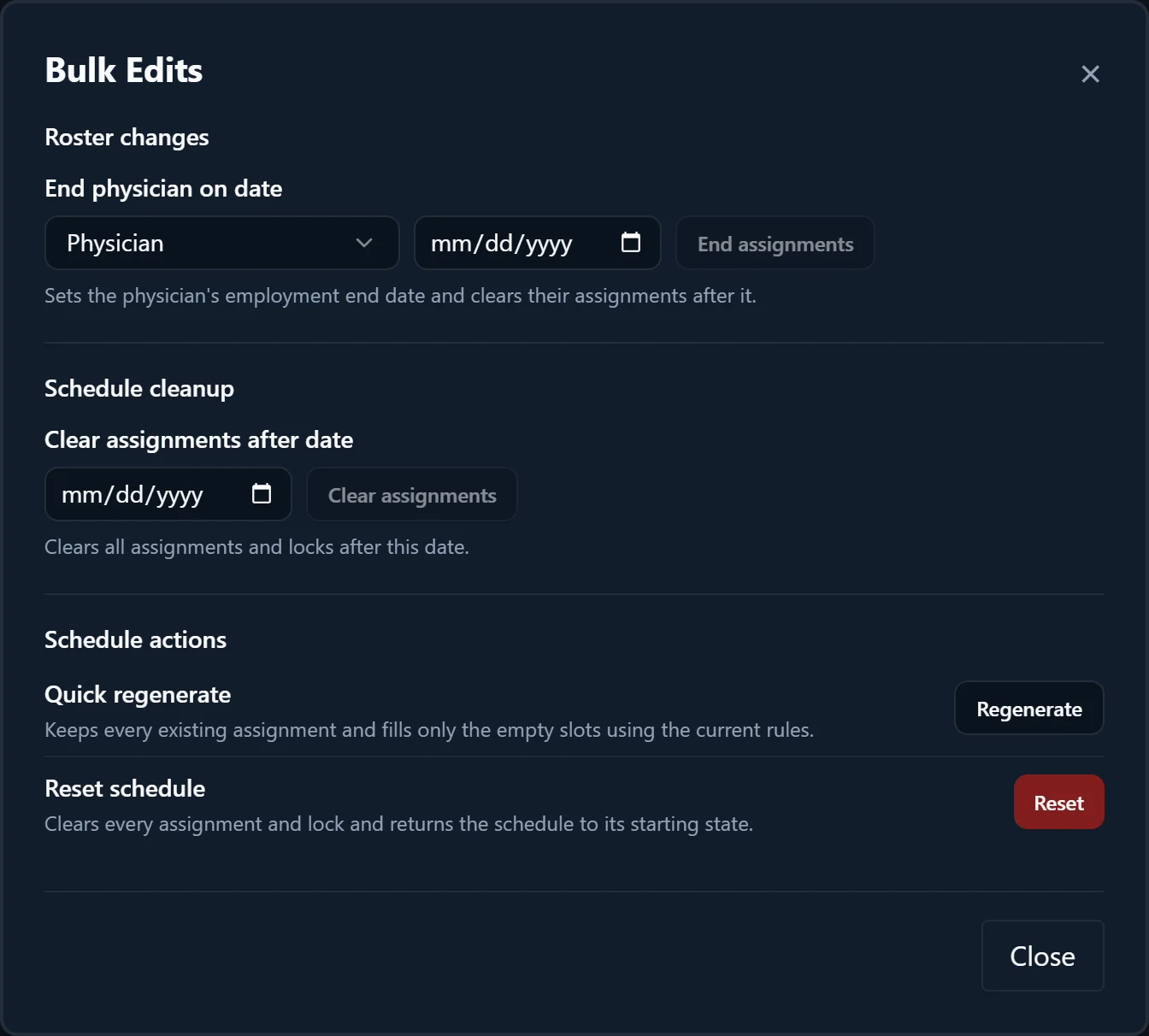
Open “Bulk Edits”. Under “End physician on date”, pick the physician, enter their last working day, select “End assignments”, and confirm. This sets their employment end date and clears every assignment they hold after it; assignments on or before that date are kept.
- 3
Record a leave of absence
Choose “Add absence” with the Type “Leave of absence” and set From and To. Existing assignments inside those dates are not removed for you, so rebuild them in the next steps.
- 4
Lock what is confirmed
Open “Specific Locks” under Refinements. Under “Time”, enter a date next to “Before” and select Lock to lock every assignment before it; the date itself is not included. “Lock All” locks every assigned cell.
- 5
Regenerate the rest
To fill only the empty slots a departure left, run “Quick regenerate” in “Bulk Edits”; it keeps every existing assignment. To give a new hire shifts or rebuild around a leave, select “Generate”, which replaces every unlocked assignment in the range and keeps locked ones.
- 6
Check the result
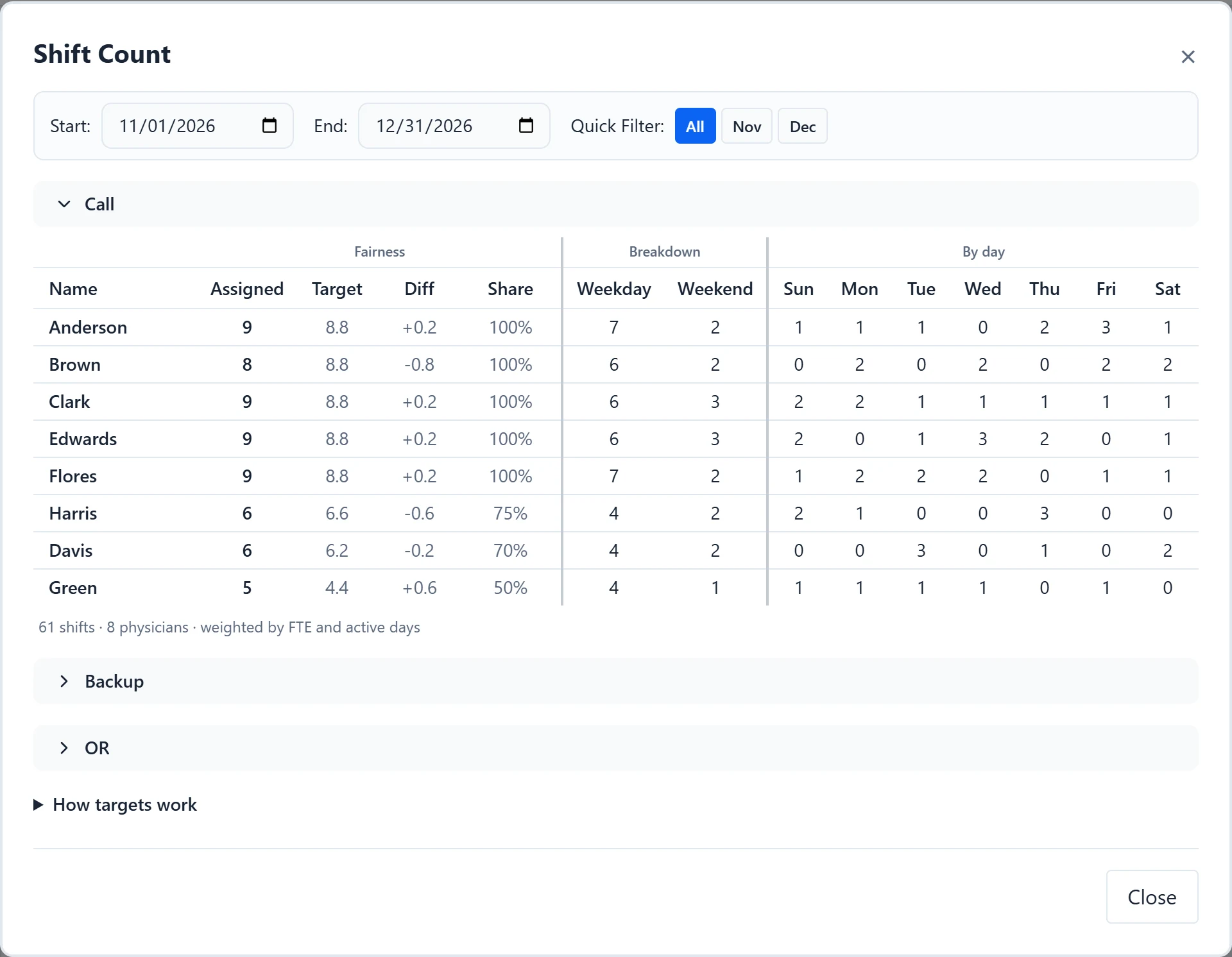
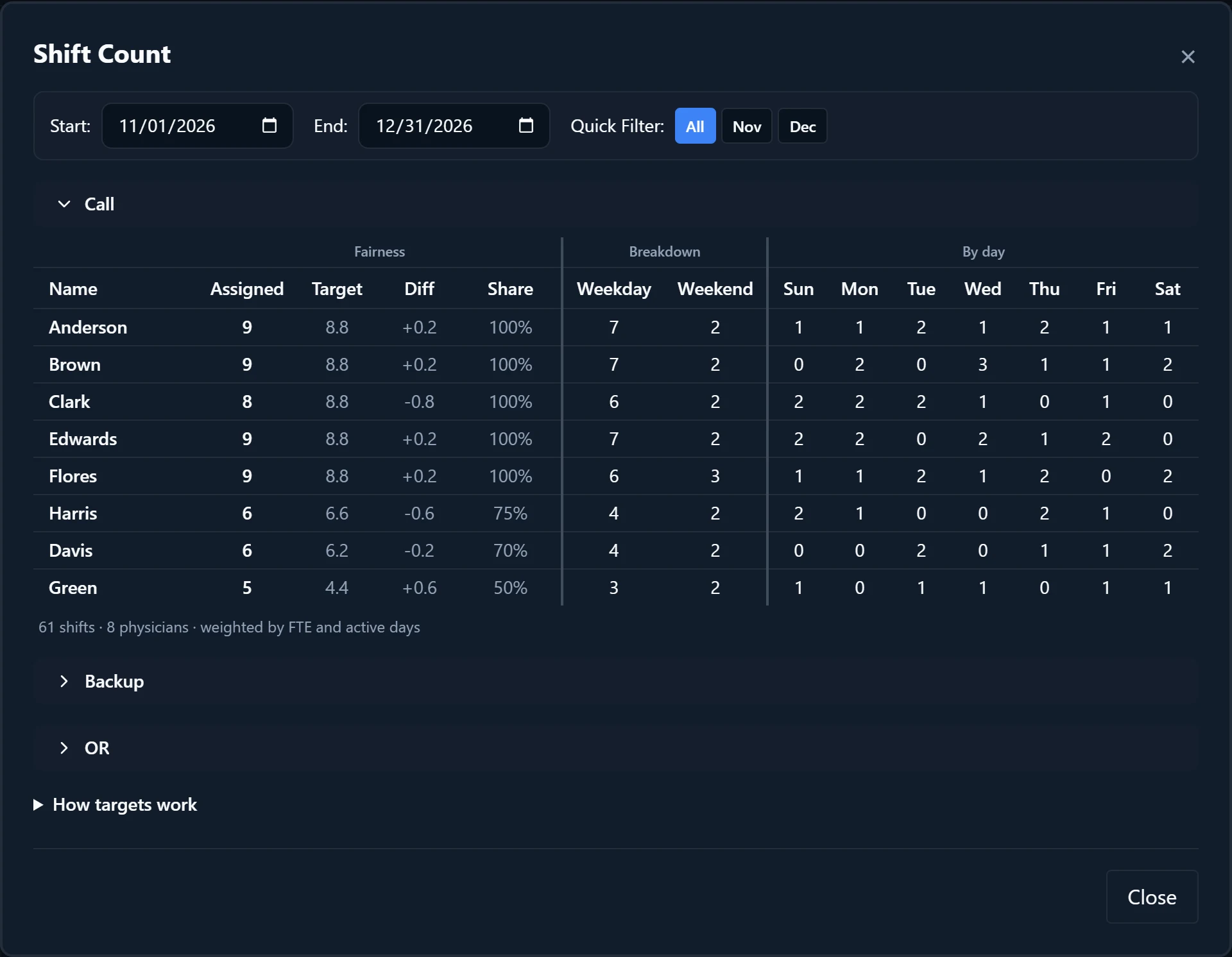
Open “Count” and compare Target with Assigned. Hover “Share” to see the physician’s active days.
Examples
A schedule runs from 7/1 to 9/30, 92 days, with four full-time physicians covering Call every day. Dr. Lee’s last day is 8/15. In “Bulk Edits”, end Dr. Lee on 8/15, then run “Quick regenerate” to fill the open slots. Dr. Lee’s Share reads “1 FTE × 46 of 92 active days = 50% workload.”, their Call Target is 13.1, and each of the other three has 26.3.
Dr. Kim joins on 8/16 to replace Dr. Lee. Add Dr. Kim, record Employment Starts with a Start date of 8/16, then in “Specific Locks” lock everything “Before” 8/16 and select “Generate” for 7/1 to 9/30. Every unlocked shift from 8/16 on is rebuilt with Dr. Kim in the pool. Shift Count then shows a Call Target of 23 for each physician who stayed and 11.5 each for Dr. Lee and Dr. Kim.
Good to know
- Employment Starts, Employment Ends, and Leave of absence are “Prorated”: they lower the physician’s expected share of shifts. Time off (PTO), CME, and Personal / other are “Standard”: the physician still owes their full share while away.
- Adding an Employment Ends absence yourself records the last day but leaves existing assignments after it on the calendar. “End physician on date” in “Bulk Edits” does both.
- When you open a day, physicians outside their employment dates are listed under “Unavailable:” as “Before Start Date” or “After End Date”.
- Changing the range in the Generate dialog also changes the schedule’s date range, which Count and Specific Locks follow.
- For a departure, use “End physician on date” rather than “Remove from roster”. Removing a physician deletes their time off, availability, group, and role settings, while their existing assignments stay on the calendar.
- Clearing and regenerating cannot be undone. Save first; saved versions are under Load > “Version history…”.
See the product tourRead the FAQ